How to Record Incidents & Communications in the Behaviour Smart App | Step-by-Step Guide
How to Record Incidents & Communications in the Behaviour Smart App
This guide walks you through how to record incidents, behaviour communications and post-incident learning using the Behaviour Smart app. It is designed for staff in mainstream schools, alternative provisions, as well as for children’s homes and care settings who use Behaviour Smart to record, review and respond to behaviour in a trauma informed, safeguarding-aware way.
Who this guide is for:
Use this guide if you:
Record incidents or behaviour information for children and young people
Contribute to post-incident learning and behaviour plans
Need to review behaviour analytics or communication history
Support Behaviour Smart implementation in your setting
You can share this page with new staff as part of induction, or refer back to it when you are unsure which option to use in the app. View Help files
Logging in to the Behaviour Smart app
1. Navigate to https://www.behavioursmart.app/login
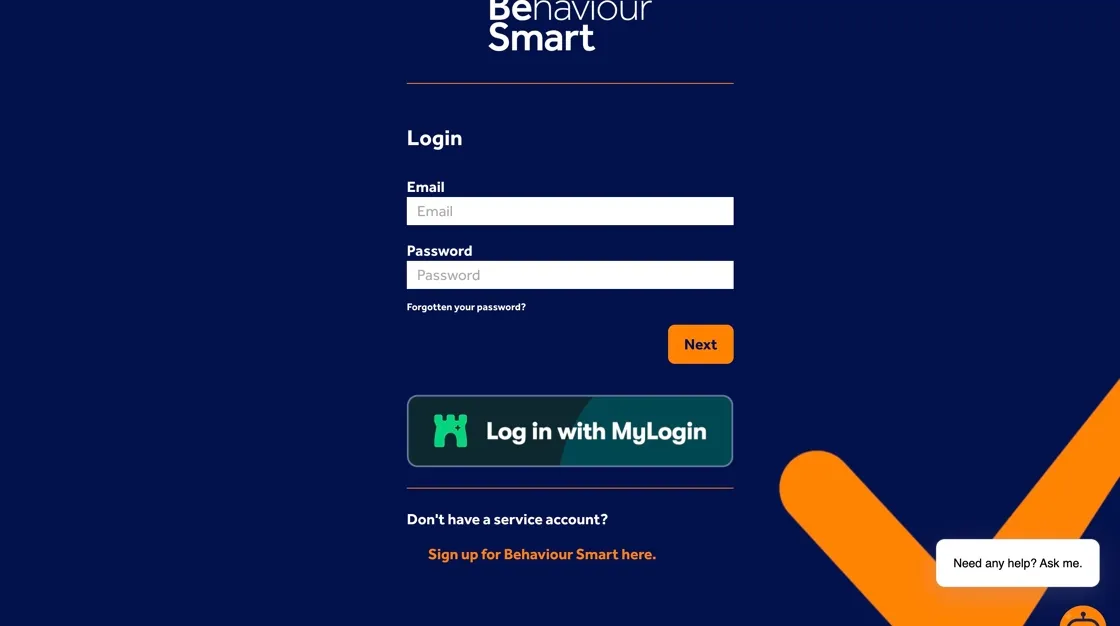
2. Enter you work email address and Behaviour Smart password.
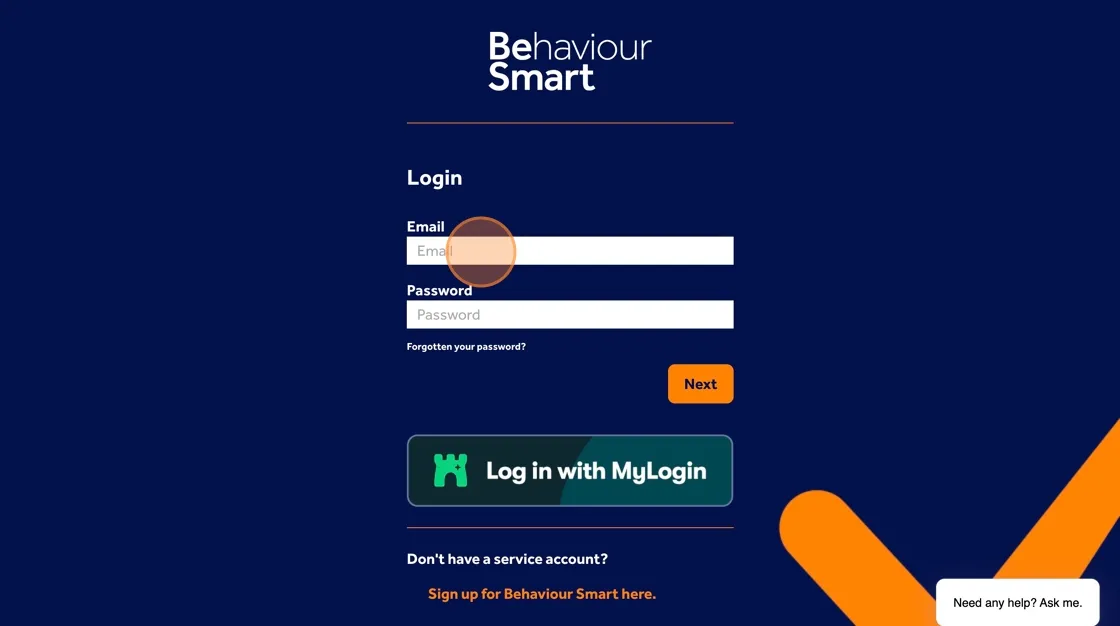
3. Click "Next" to access your dashboard.

Tip: Add this page to your favourites or create a shortcut on your home screen so you can quickly access Behaviour Smart during the school day.
Understanding the dashboard
Once you are logged in, your dashboard lets you access the Help Centre:
4. Access the Behaviour Smart Help Centre
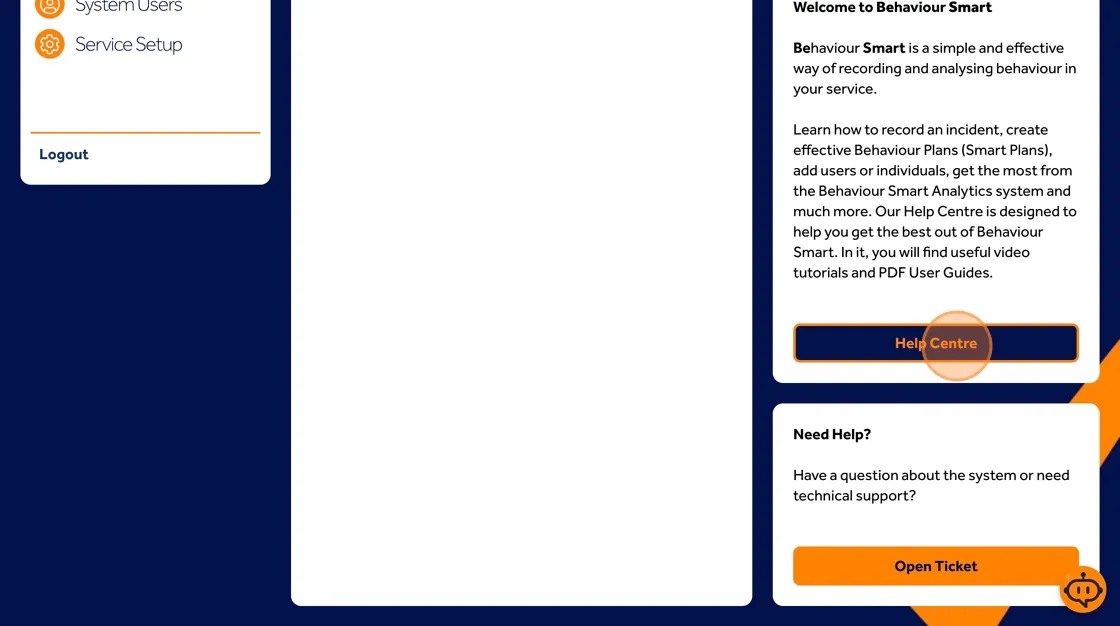
5. You can open a support ticket, view help files, talk to Sophie (The Behaviour Smart Help Bot)
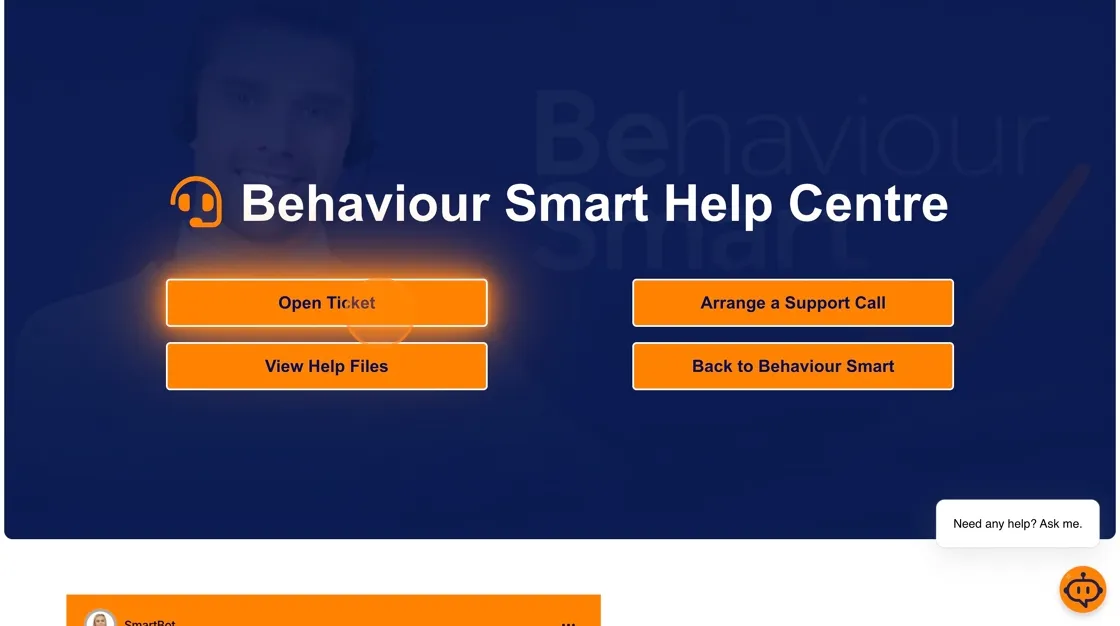
6. Arrange a support call with the Behaviour Smart team

From the dashboard you can:
7. Quickly view incidents from the last 7 days, 30 days or longer
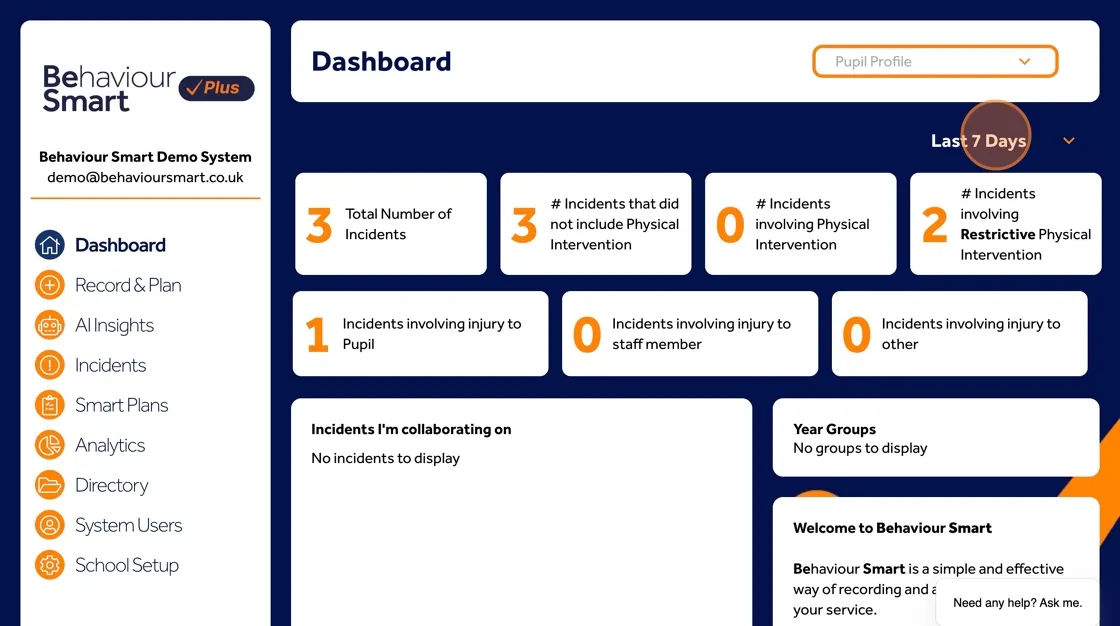
8. Open and review incidents in more detail
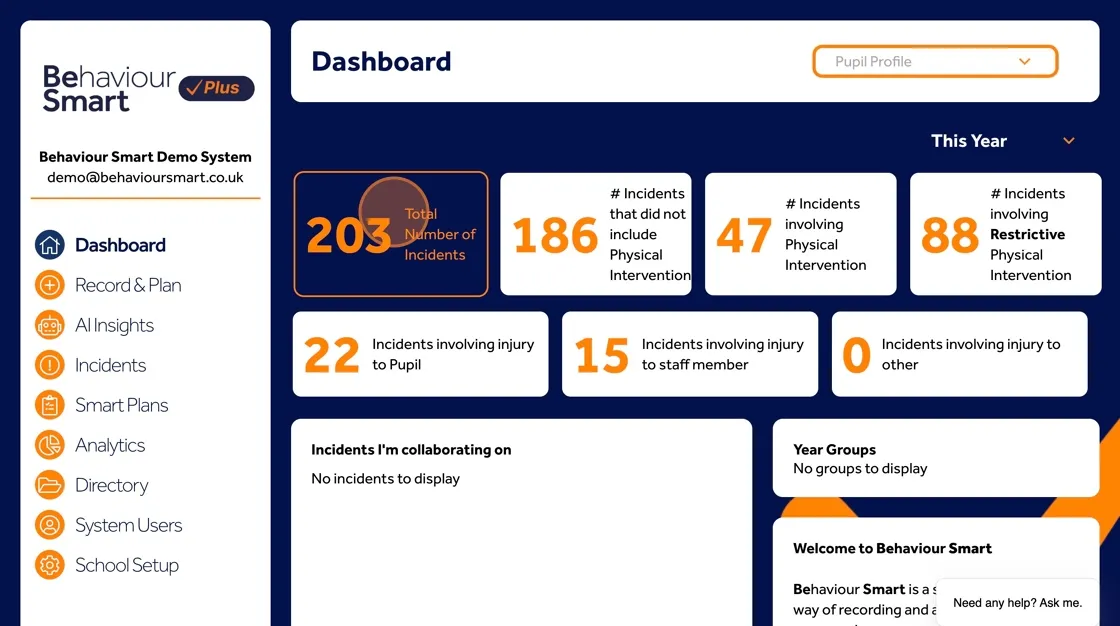
This keeps technical support, guidance and incident work in one place.
Viewing an individual’s profile
To see information for a specific pupil or young person:
Click Profile. Choose the individual from the dropdown list.
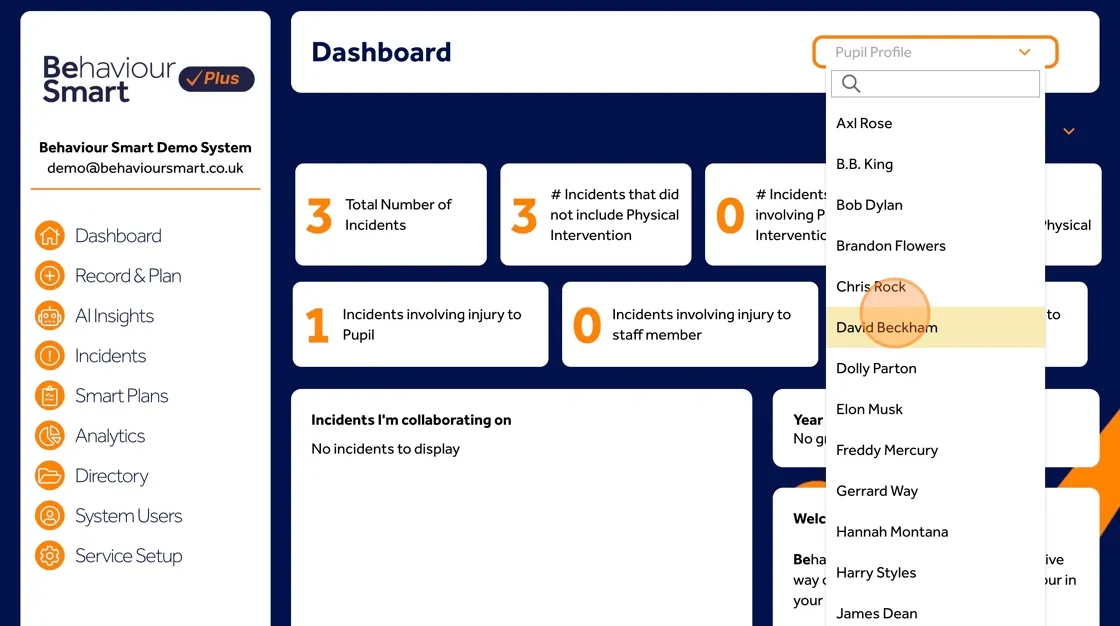
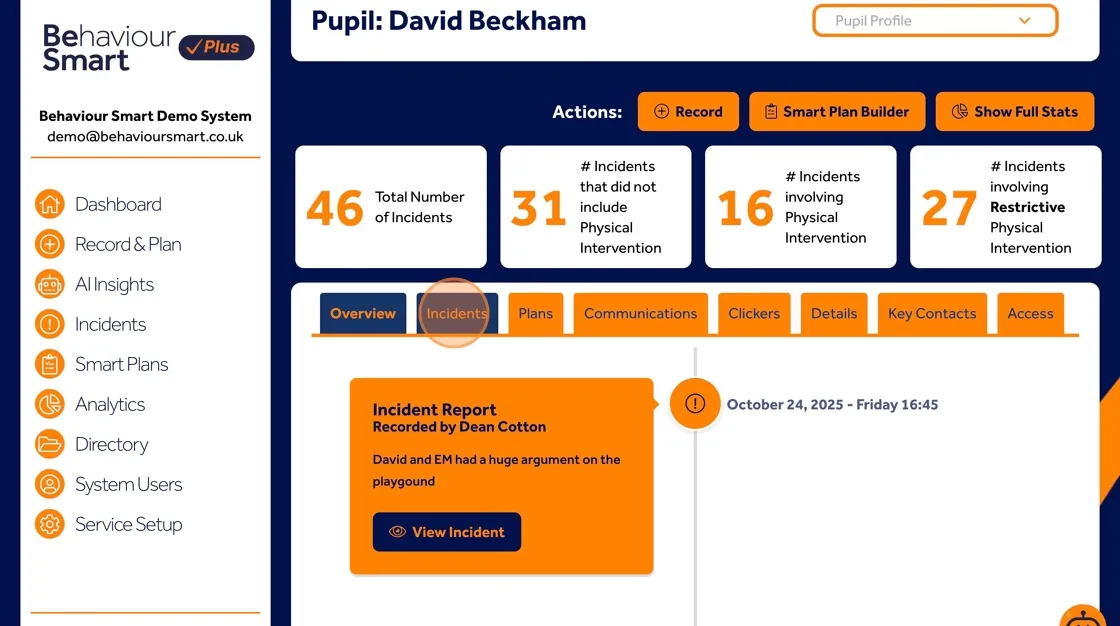
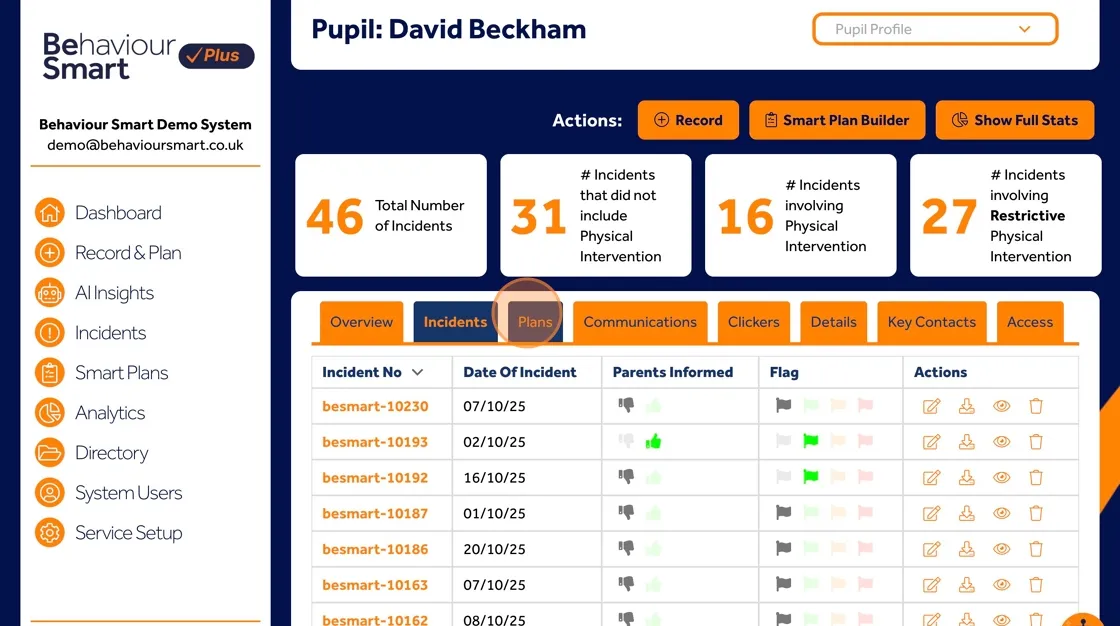
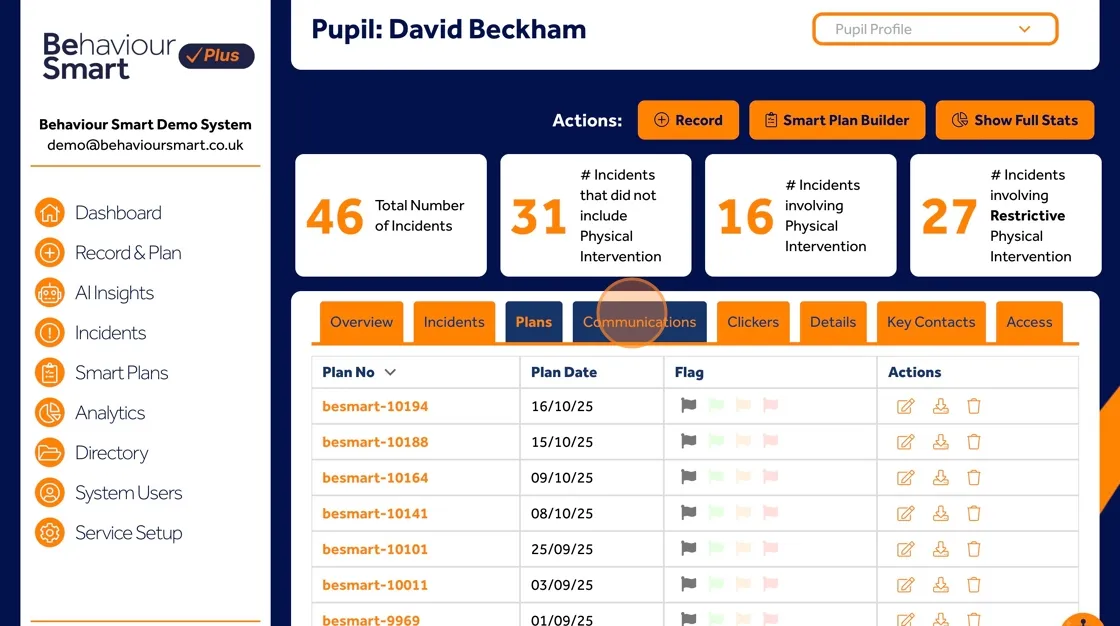
Their profile gives you access to:
Overview of their recent incidents
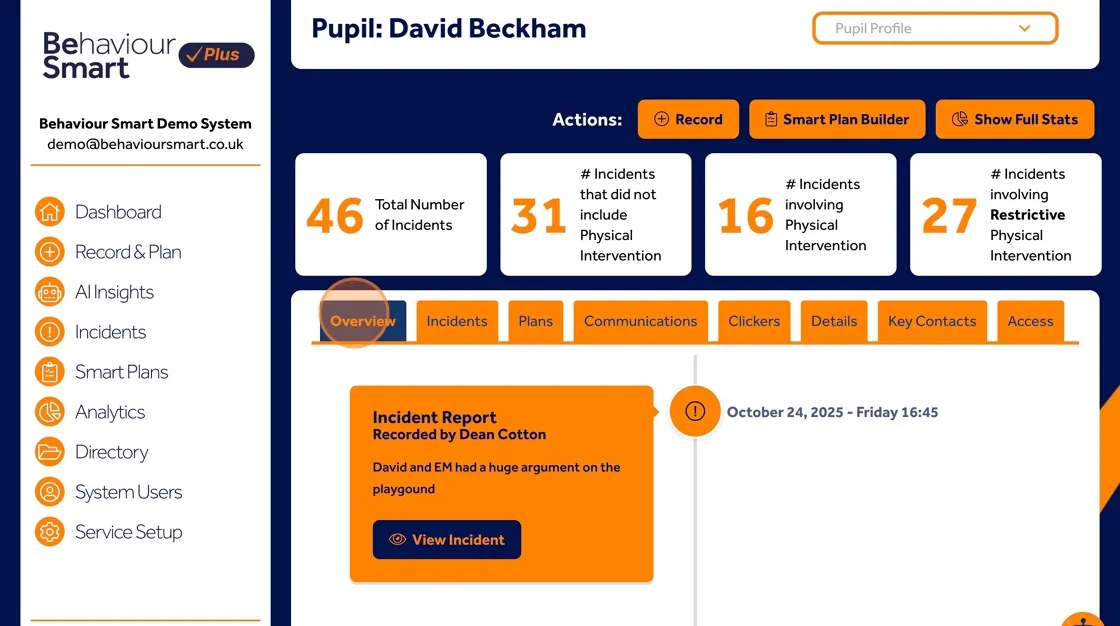
Incidents recorded about them
Plans created to support them
Communications relating to them
Clickers (behaviour clicker logs)
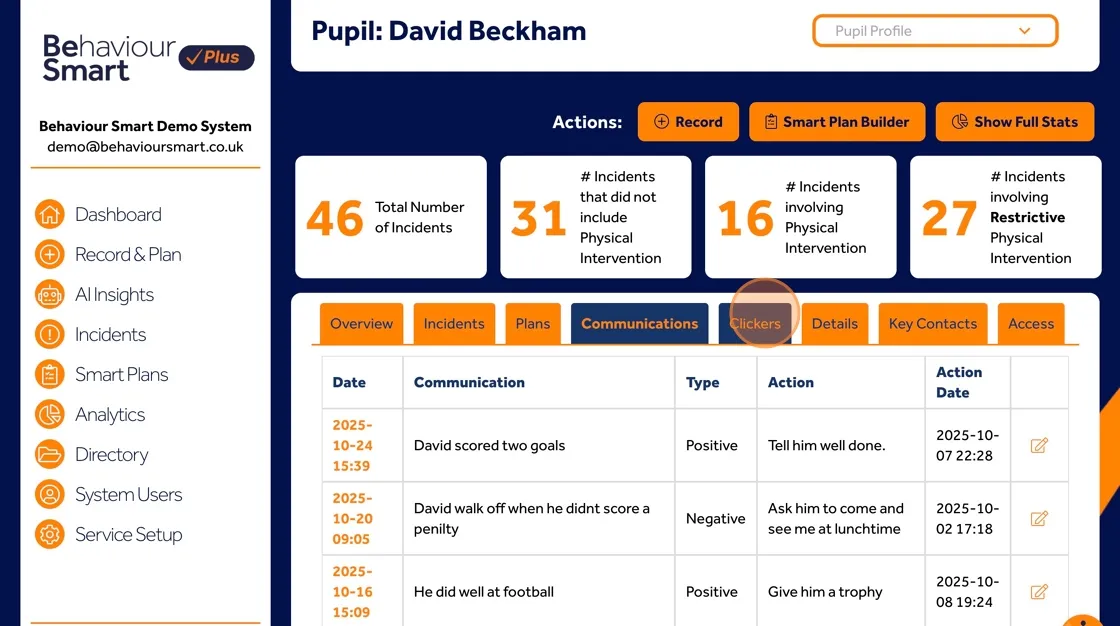
Access to each profile Details
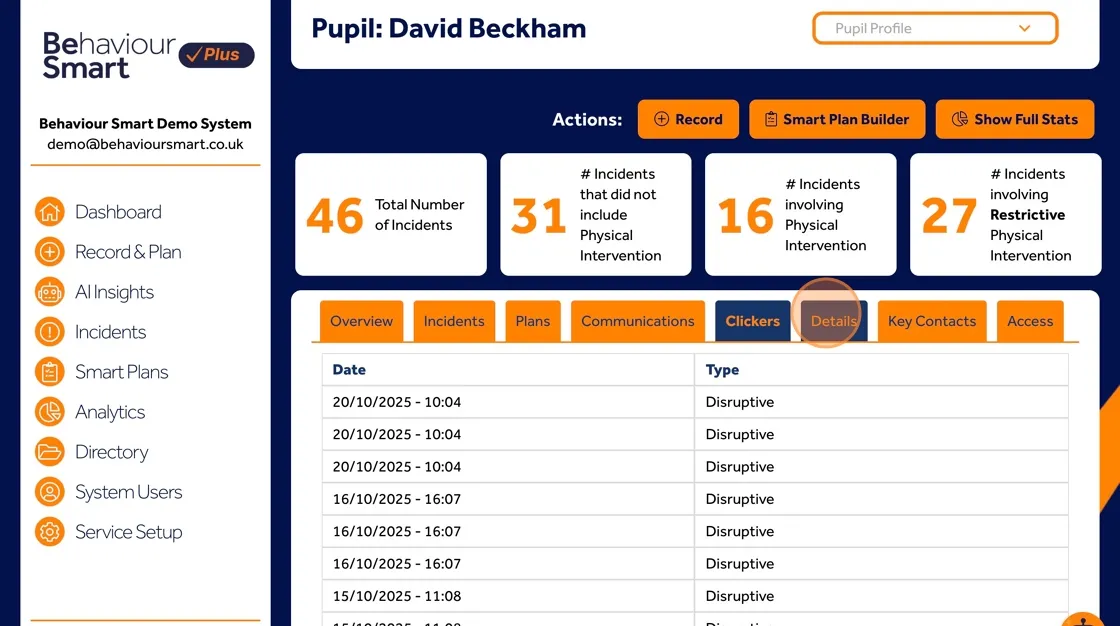
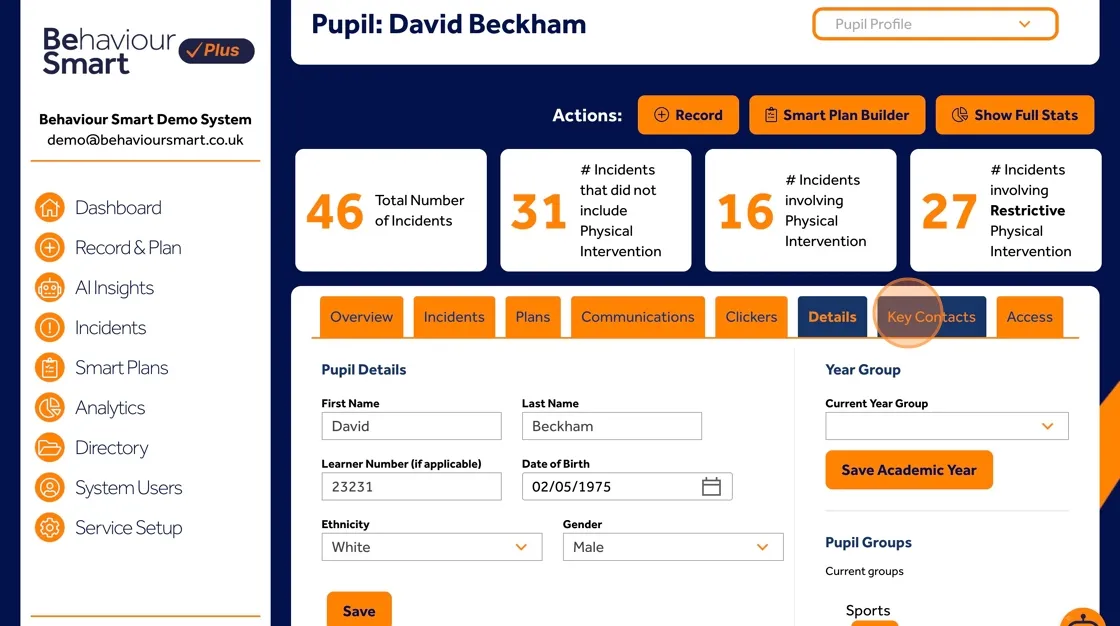
Key Contacts
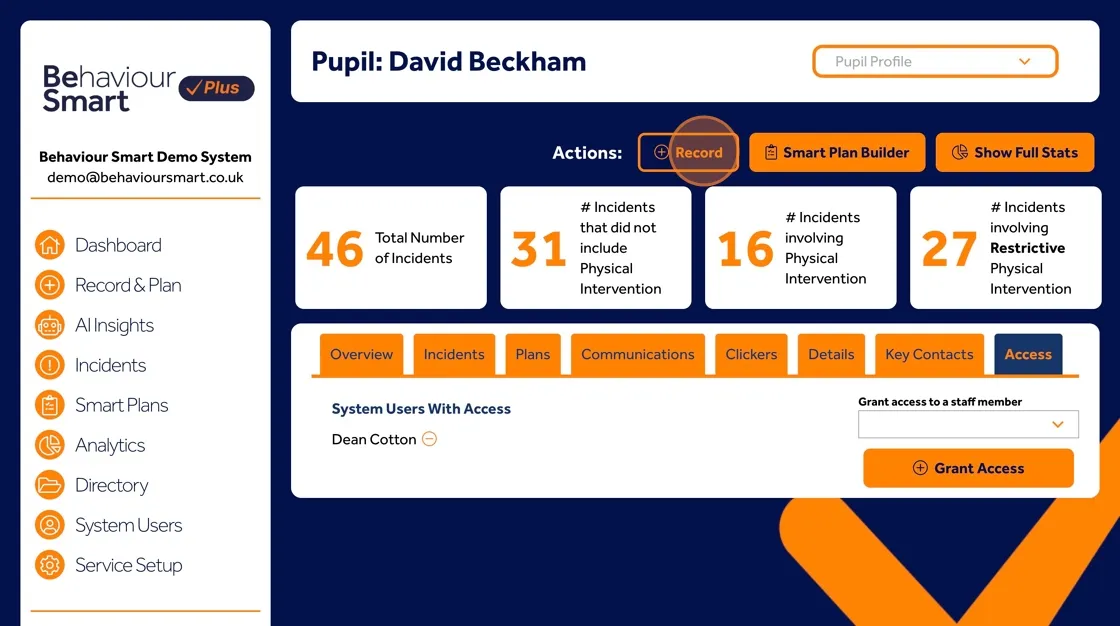
Current Access permissions for this profile

This helps you understand the full picture before you record anything new.
Recording behaviour using the Behaviour Clicker
If your organisation uses the Behaviour Clicker
Select Record.
Choose Behaviour Clicker.
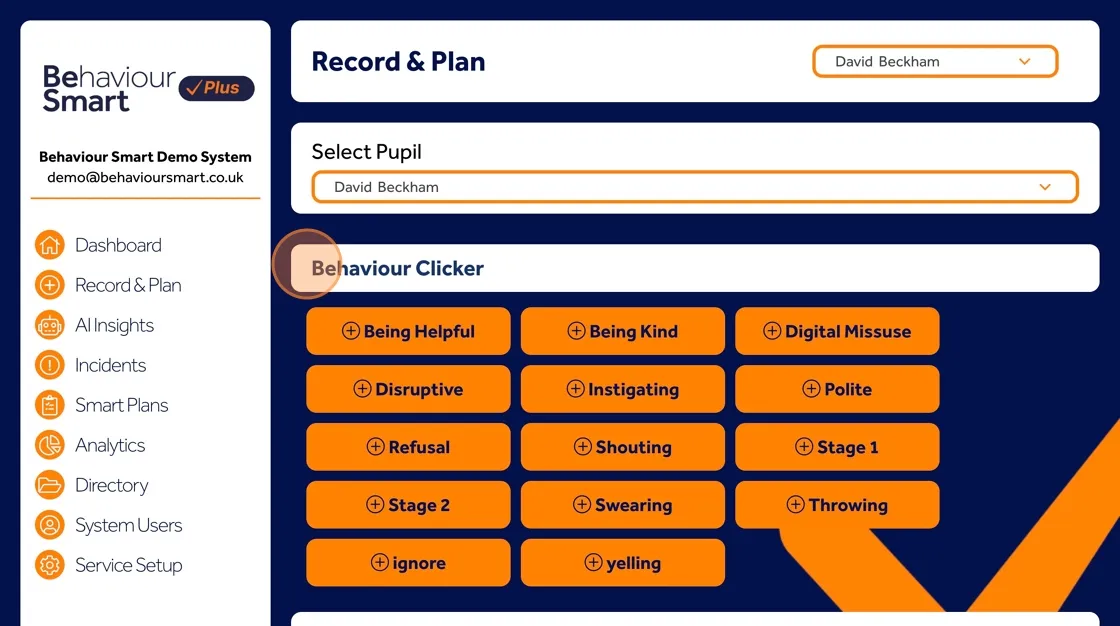
Select the behaviour you want to record from the list.
Behaviour Smart automatically logs the time and date each behaviour is selected so patterns can be identified over time.
This is especially useful for frequently occurring behaviours where you need a quick, low-effort way to record data during a busy lesson or shift.
Create a smart plan by clicking the Smart Plan Builder
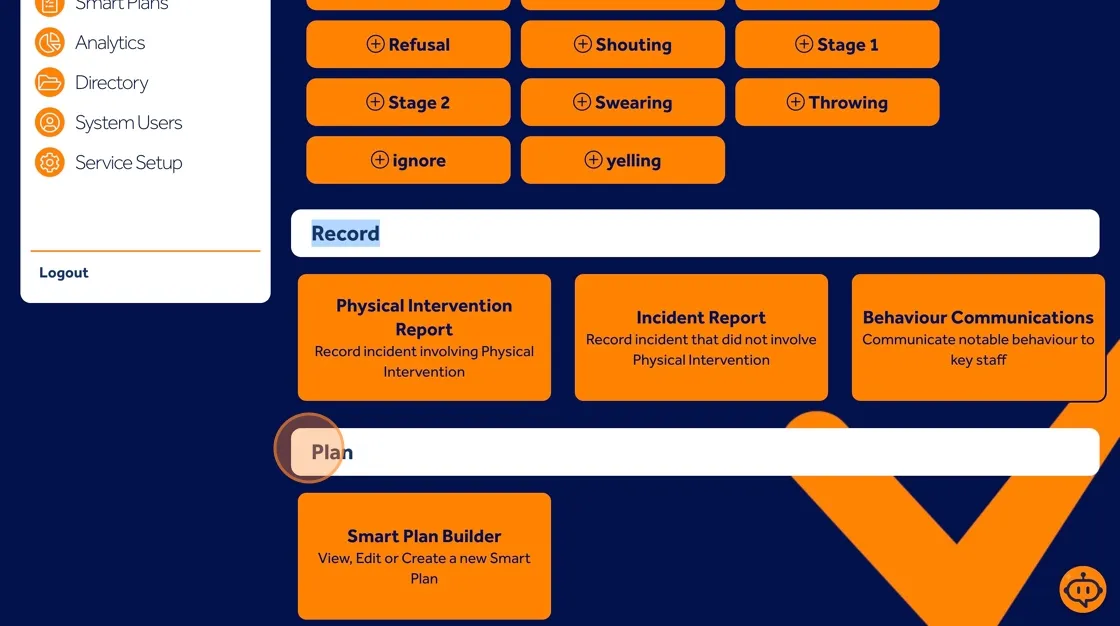
Sending Behaviour Communications
Behaviour Communications is used to send quick, structured messages to key staff about behaviour or support needs. Behaviour Smart can support evidence for parental meetings and reviews.
To send a communication:
To use the "Behaviour Clicker", select the behaviour you would like to record. Behaviour Smart will log the time and date the clicker was selected.
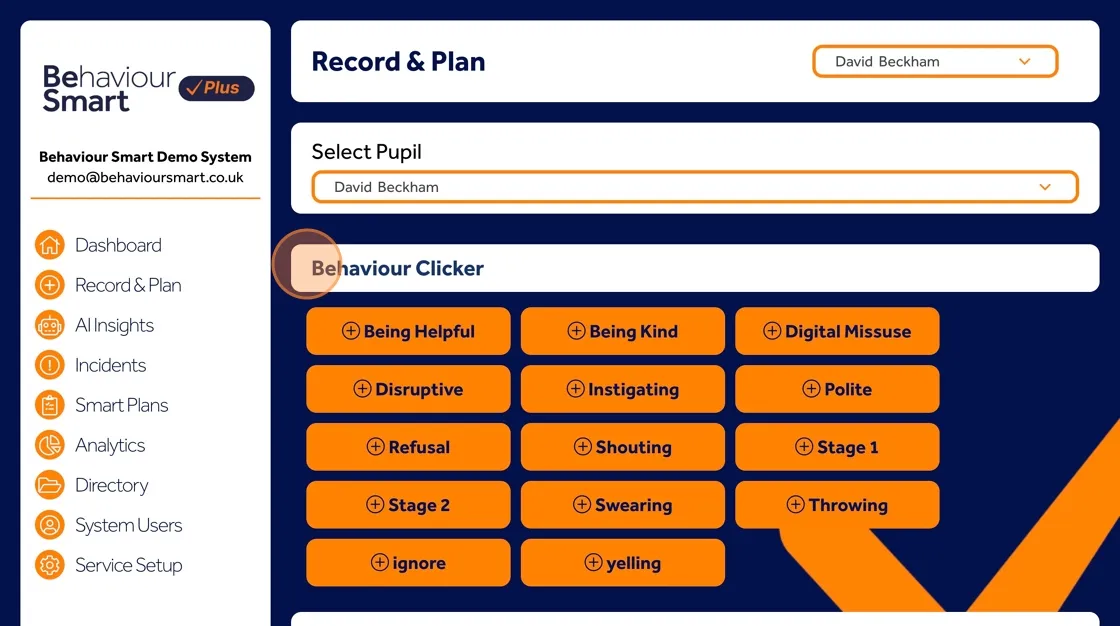
Choose Behaviour Communications.
Behaviour Communications is a communications tool to key people.

Select whether the communication is Positive, Negative or N/A.

Select your name from the dropdown.
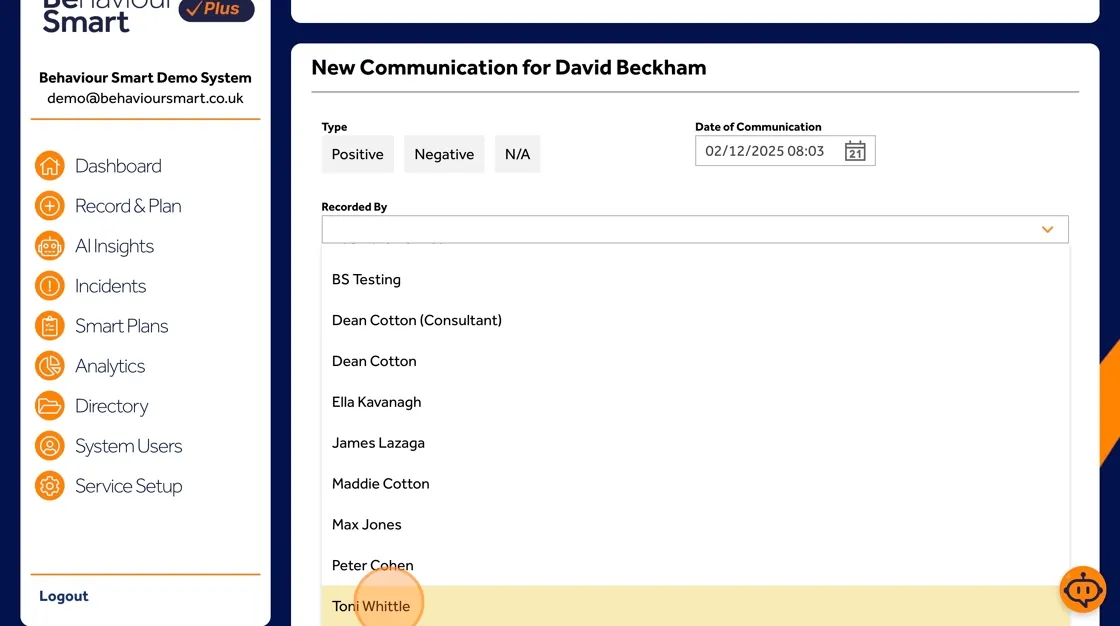
Type your message, making it clear, factual and child-centred.
Key staff will be notified of your communication and can leave a response.
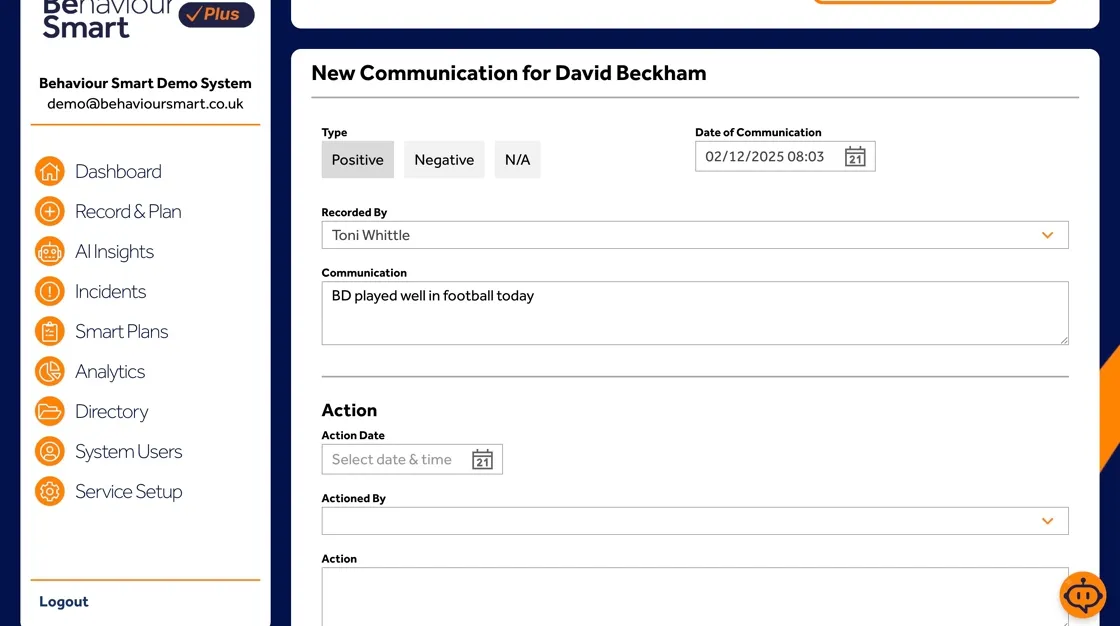
Key staff will be notified of your communication and can leave a response.
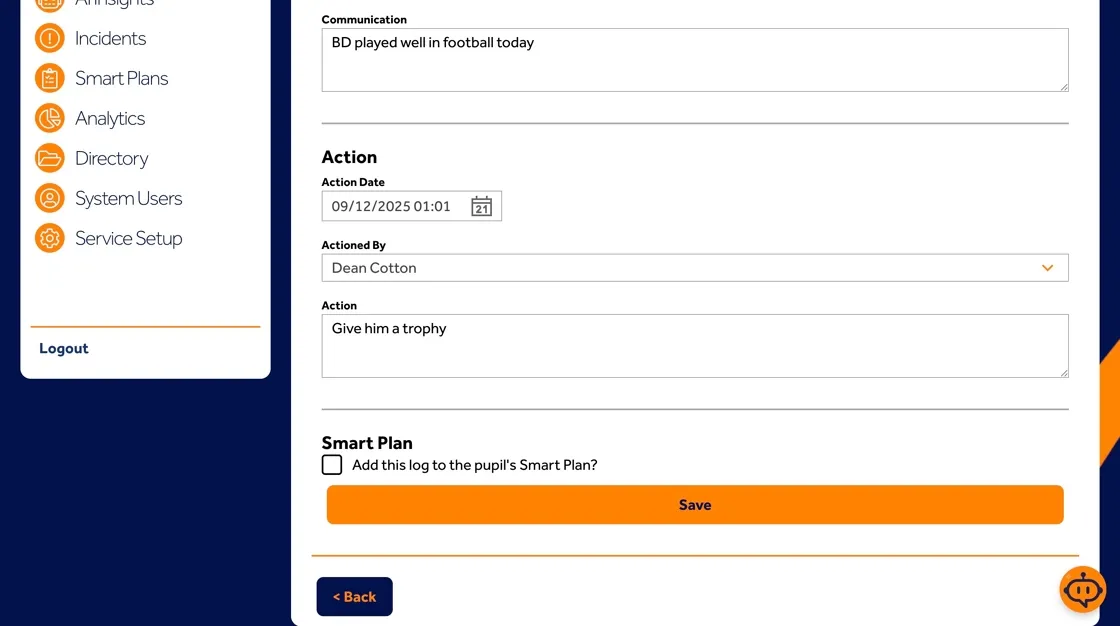
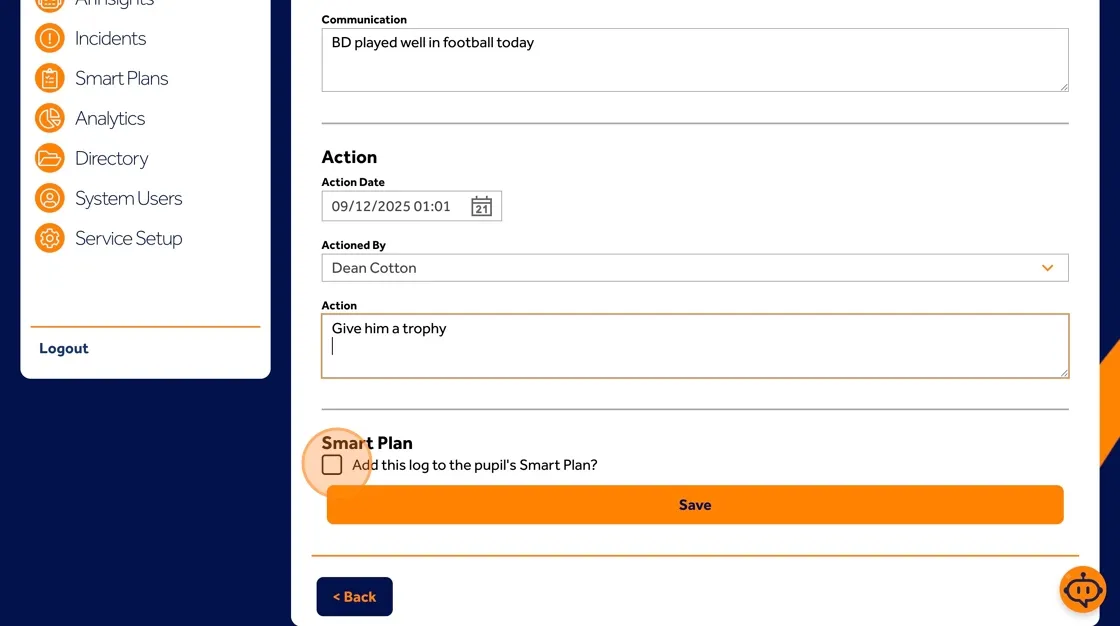
Where appropriate, these communications can also be added into the individual’s Smart Plan so that important information about what helps is not lost.
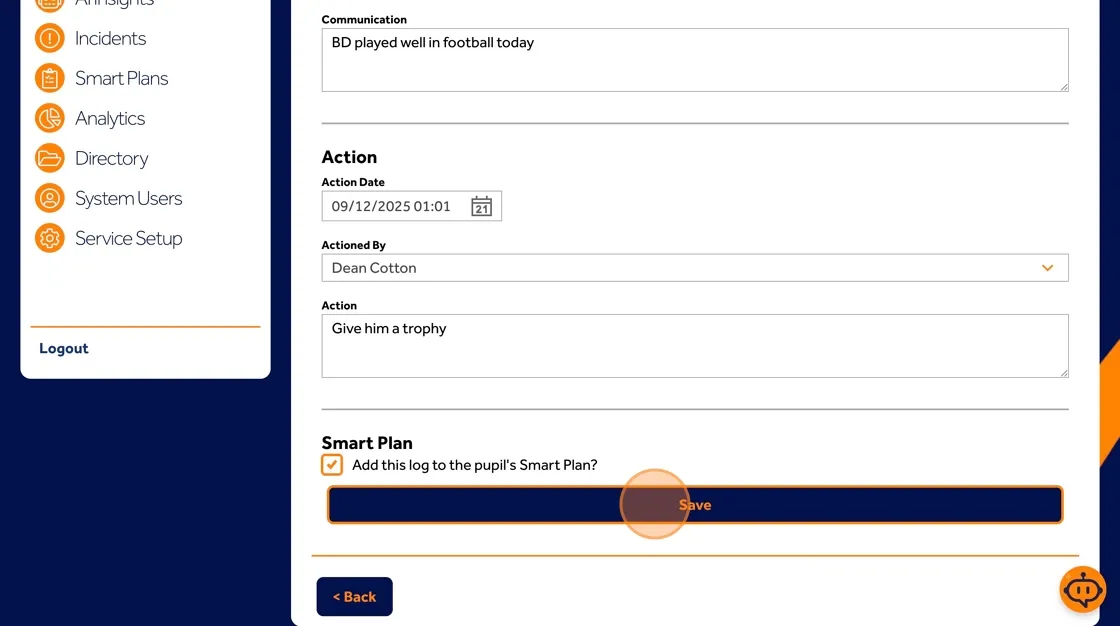
Click Save.
Record an Incident or create a Smart Plan
To record an incident in detail:
Select "Record & Plan," then choose the individual from the drop-down list.

Select Incident Report.
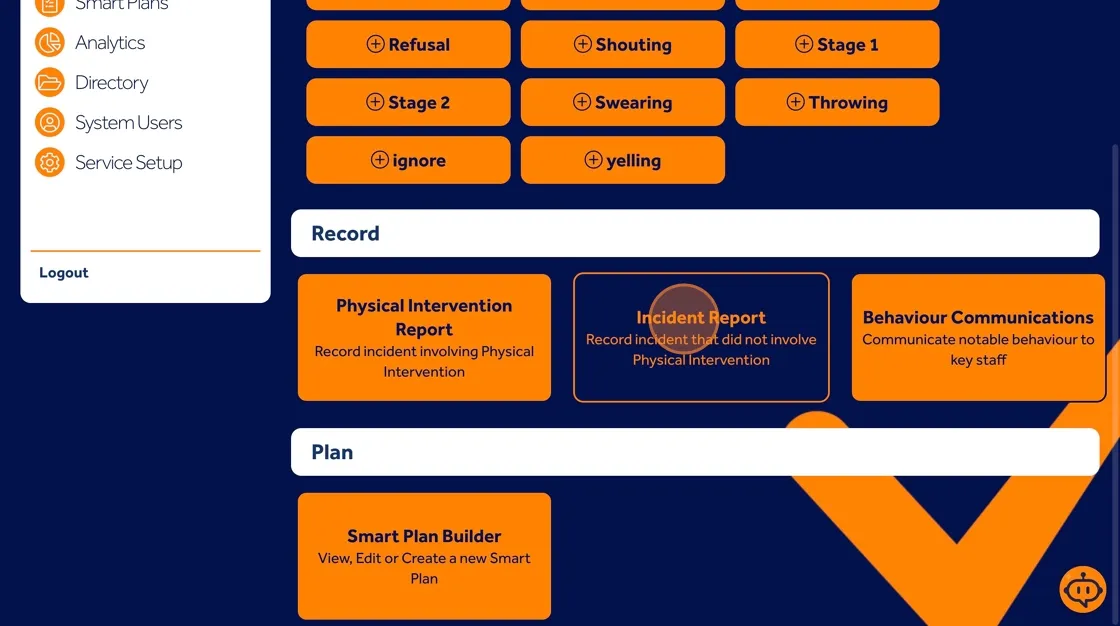
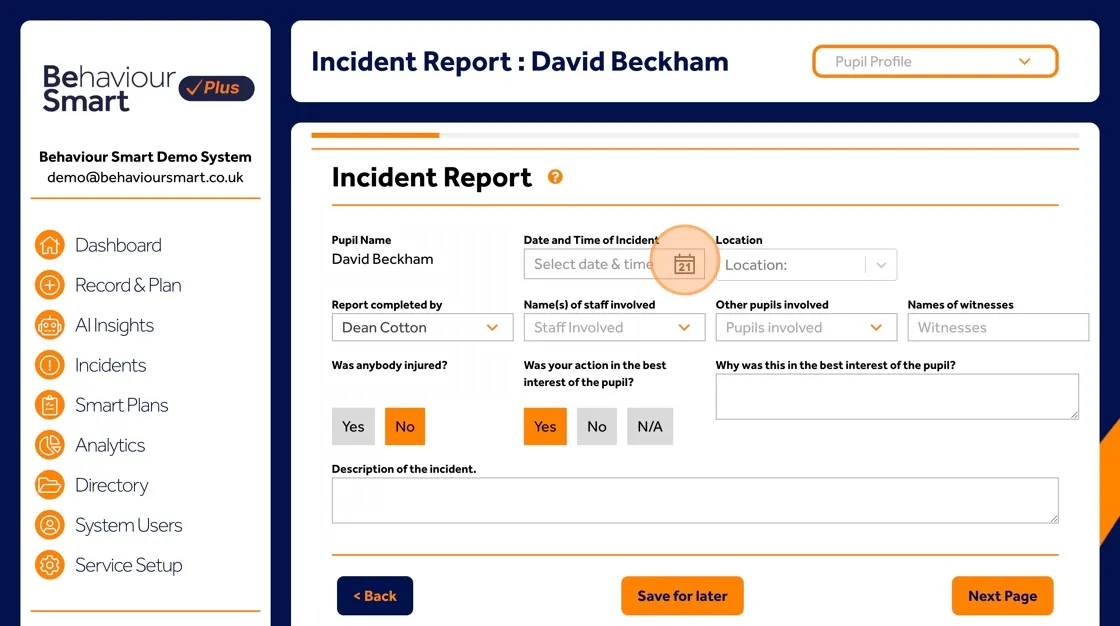
Complete the incident form, including "what happened", "where and when it happened", "Who was present"
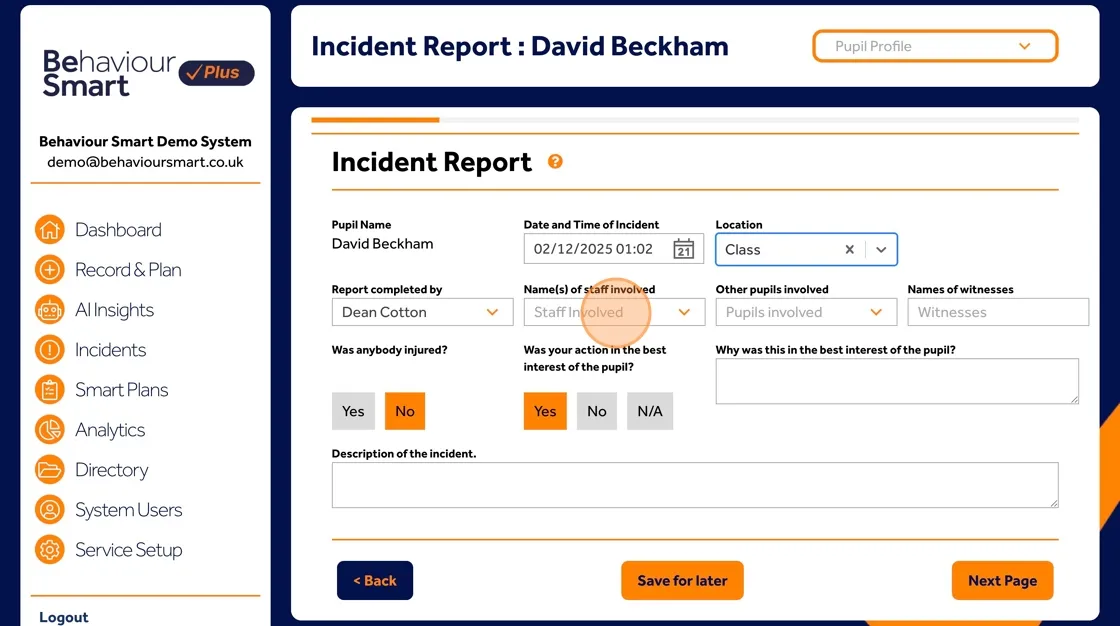
Points to note: Points to note: other staff were also involved in the incident; they will be notified and invited to collaborate. Multiple staff can be selected.
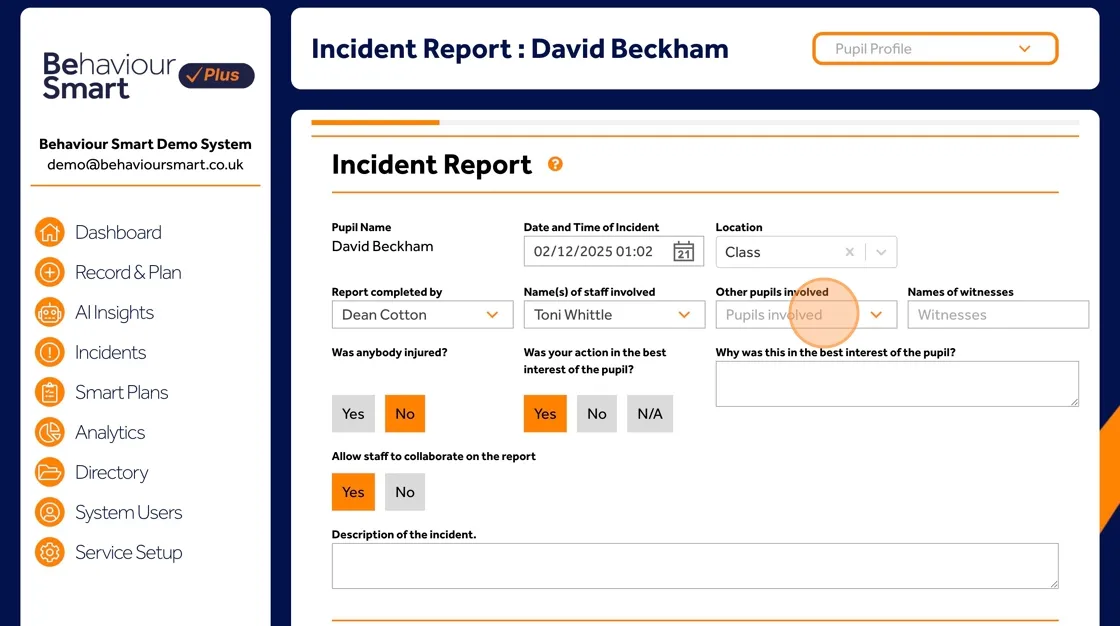
If other individuals were involved in the incident, they can be added here. Multiple individuals can be selected
If an injury occurred select "Yes"
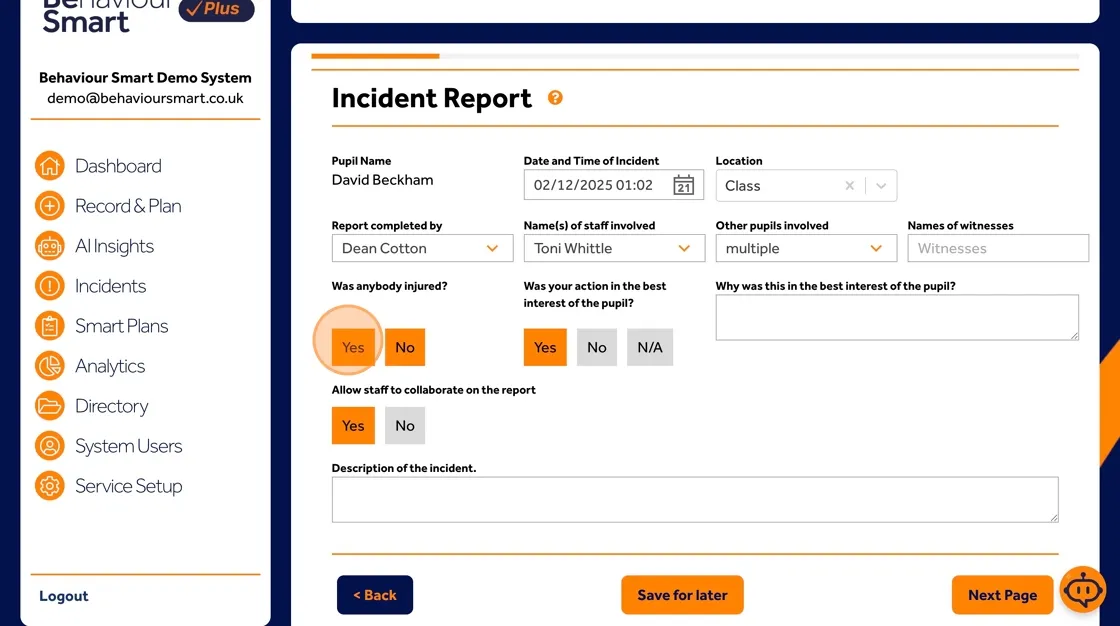
Complete the details.

Click Next Page to move into the post-incident learning section.
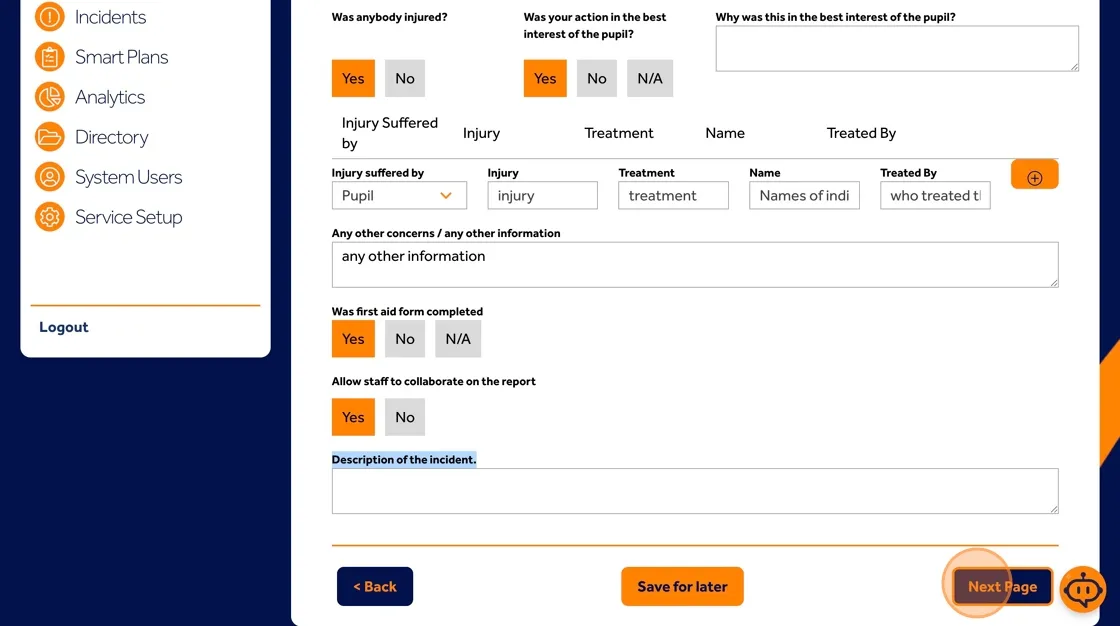
Completing Post Incident Learning (PILD)
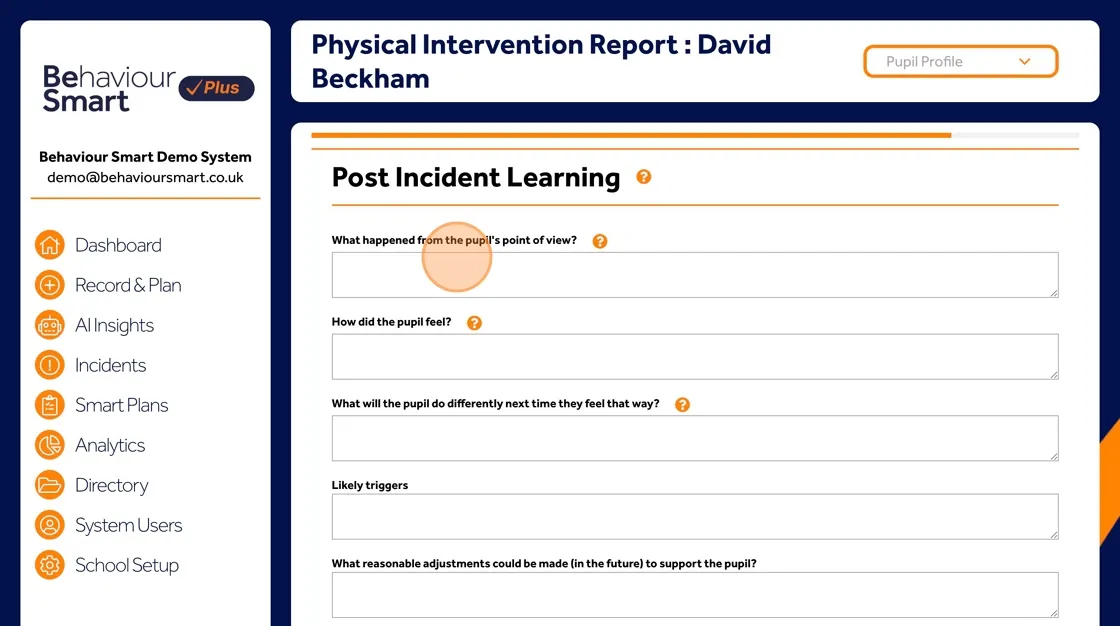
Post-incident learning is a vital part of Behaviour Smart. It focuses on the child or young person’s perspective and what can be learned to reduce harm and support them better next time.
You will be prompted to record what happened from the individual’s perspective, how this made them feel, what they could do next time they feel that way, likely triggers for the incident, reasonable adjustments that could be made to support them, and any other important comments or context.
To explore how PILD fits into our wider behaviour approach, read more on the Post Incident Learning App page.
Complete the Post Incident Learning Details
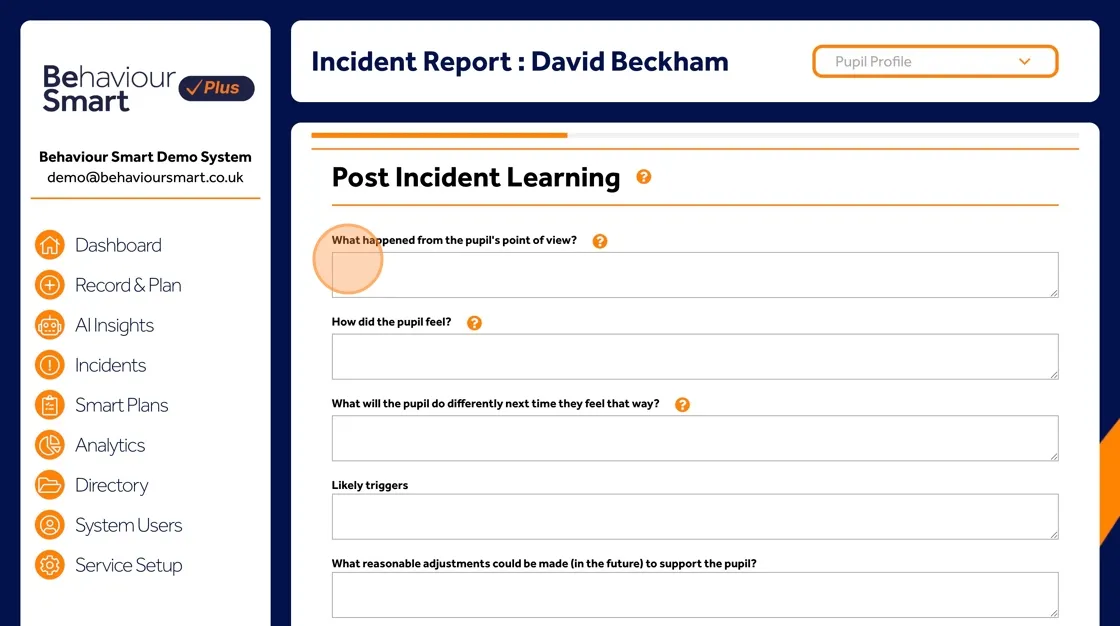
Enter the details on "What happened from the individuals perspective"
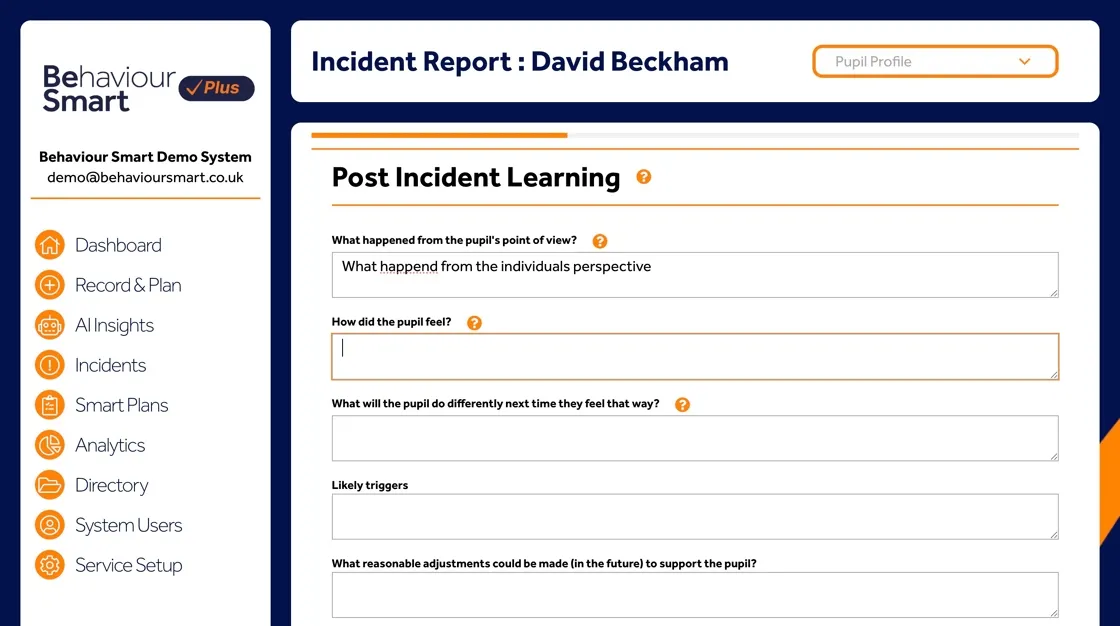
Enter the details on "How did this make them feel"
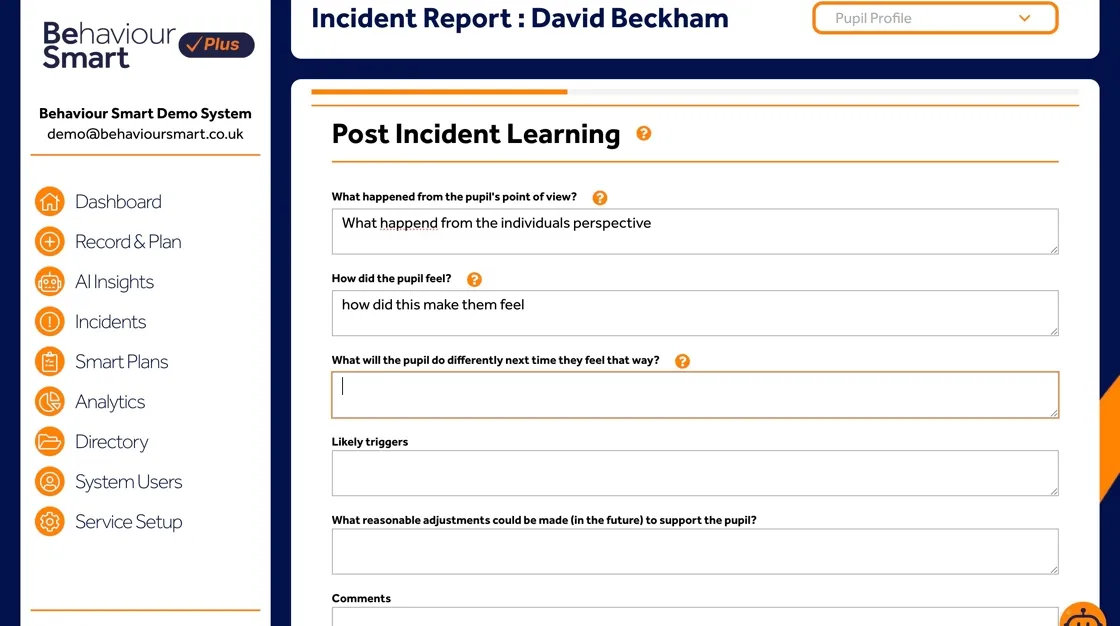
Enter the detailed on "What could they do the next time they feel that way"
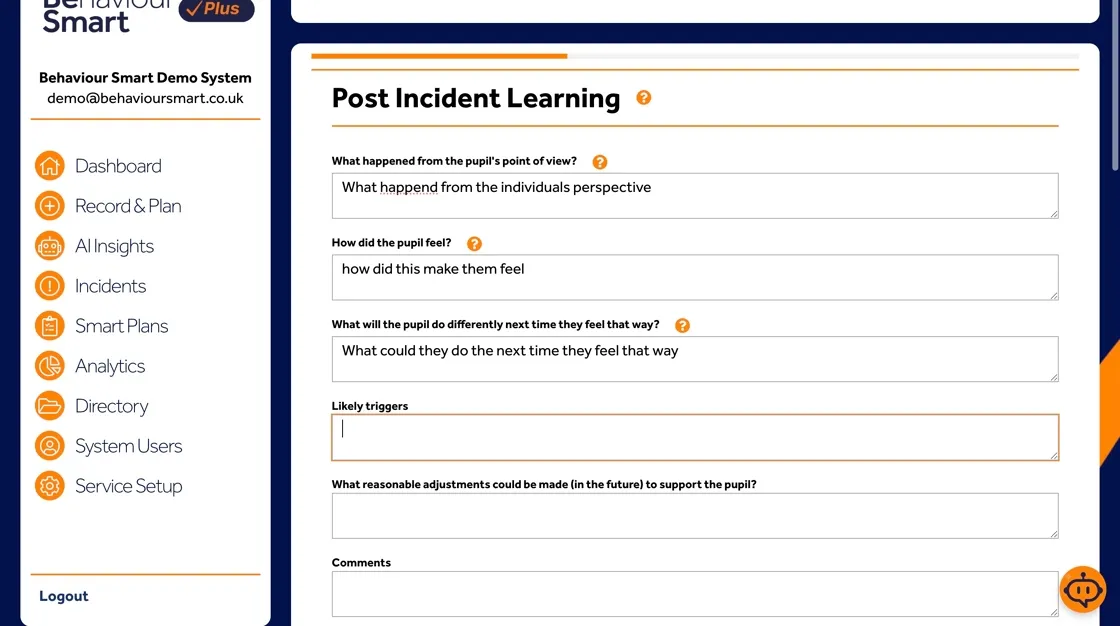
You can add likely triggers for the incident
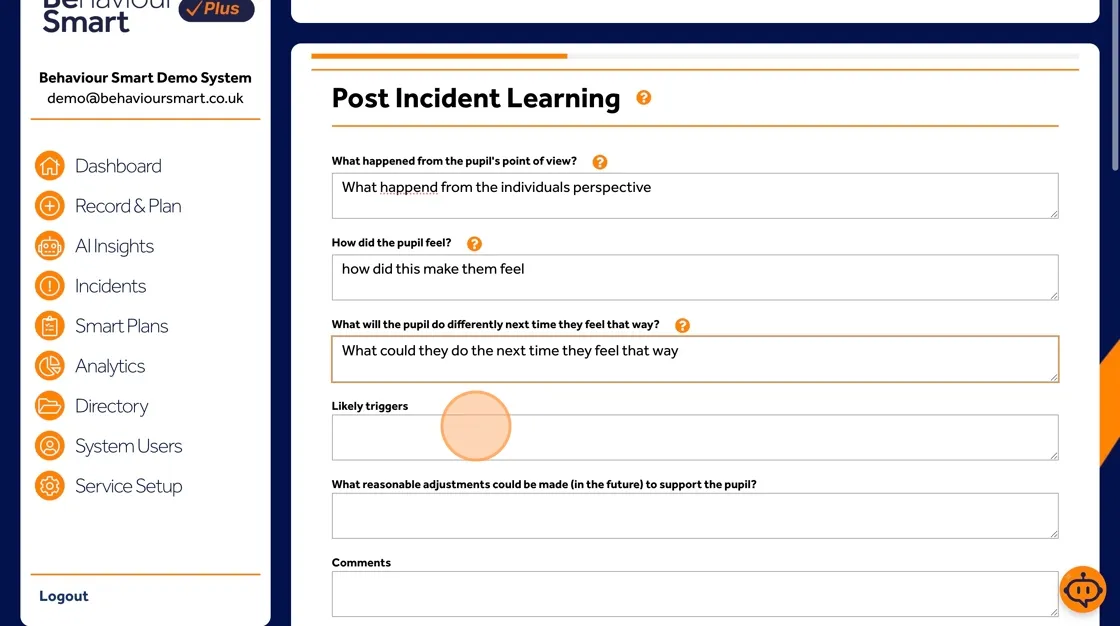
Share "What reasonable adjustments could be made to support the individual, and any other comments."
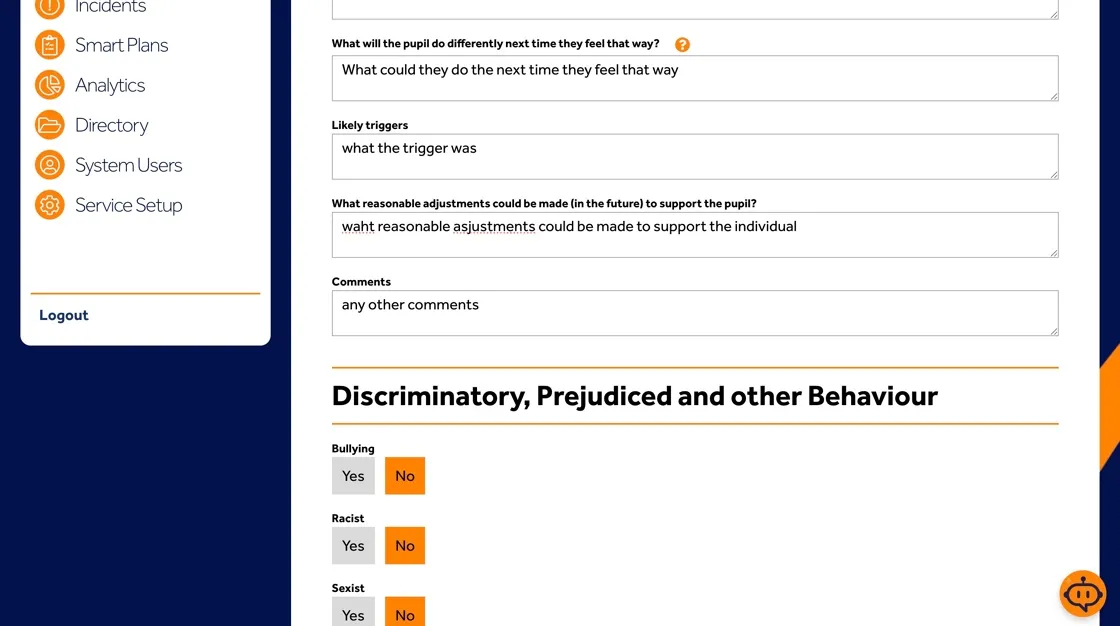
Select "Yes" for any "Discriminatory, Prejudiced and other Behaviour" displayed."

Select any suspensions or permanent exclusions linked to the incident if required,
then click "Next Page"
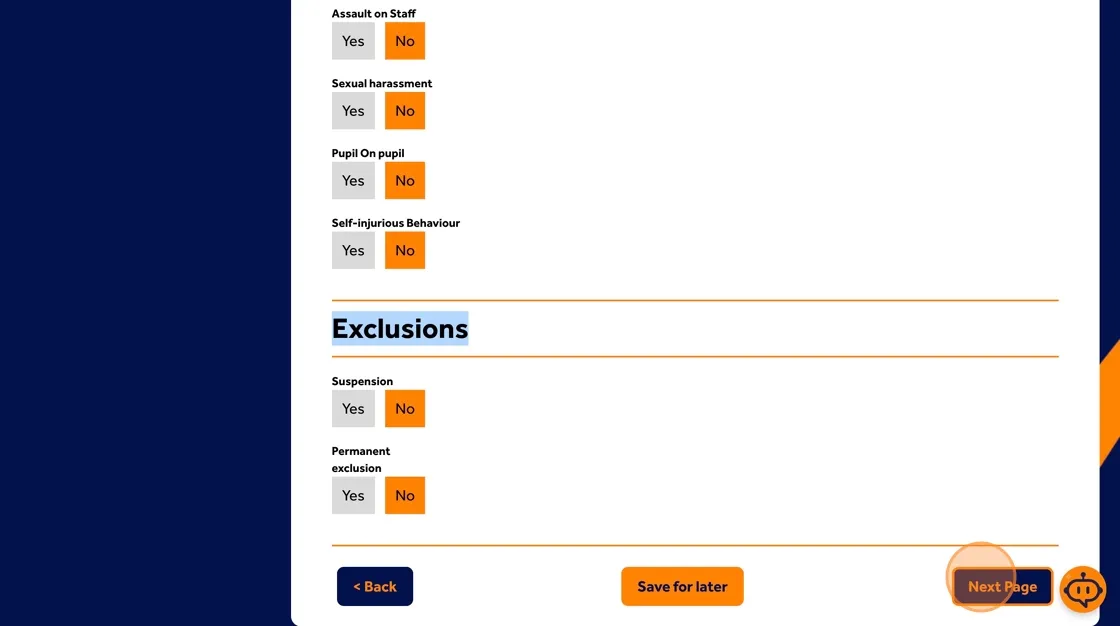
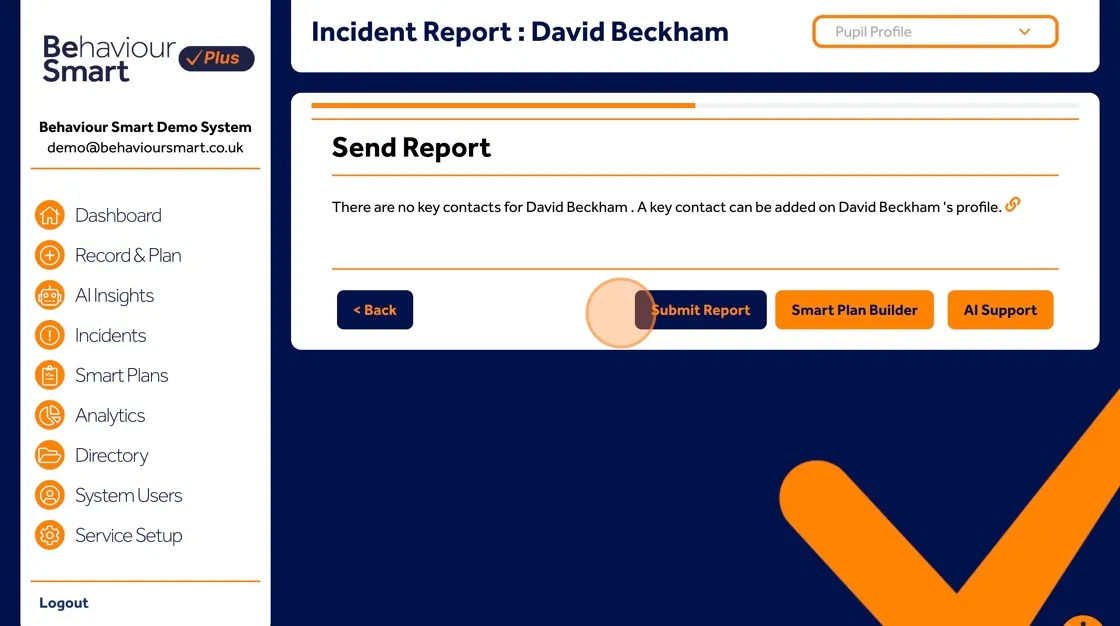
Once this is complete, you can move on to 'Submit Report', creating a 'Smart Plan' or 'AI Support'. Key people in your organisation will be notified of the incident.
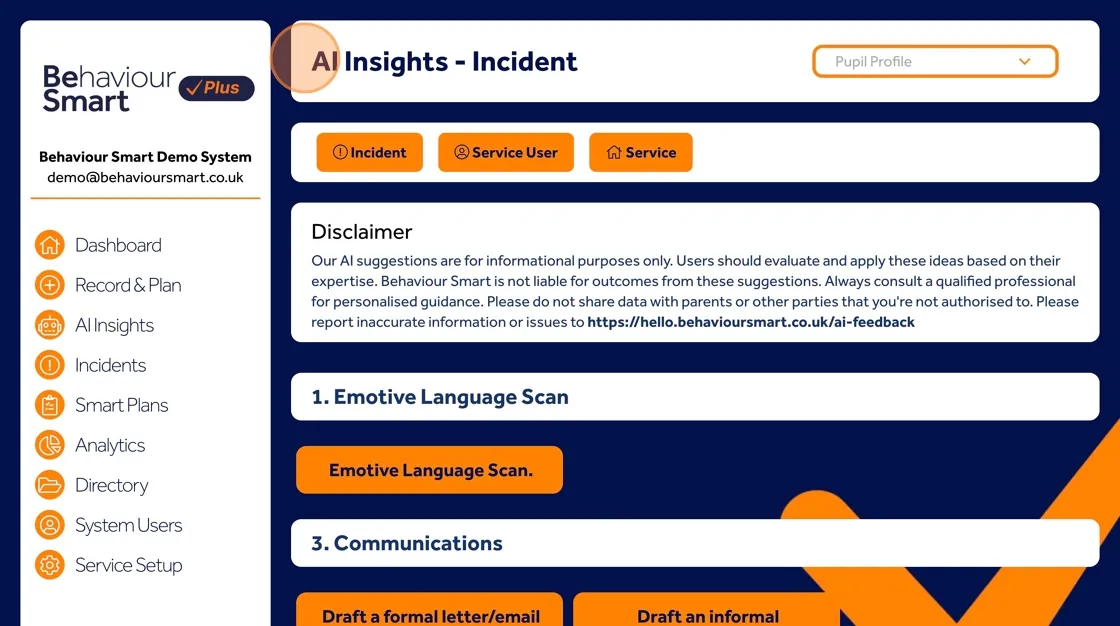
Using Behaviour Smart AI Support
'AI Support' Will give you access to numerous tools to help you support behaviour. A full list of the AI tools can be found in the Behaviour Smart AI Powered page
Examples of AI tools include:
Emotive Language Scan
Drafting formal or informal letters
Suggesting ways to support an individual or service
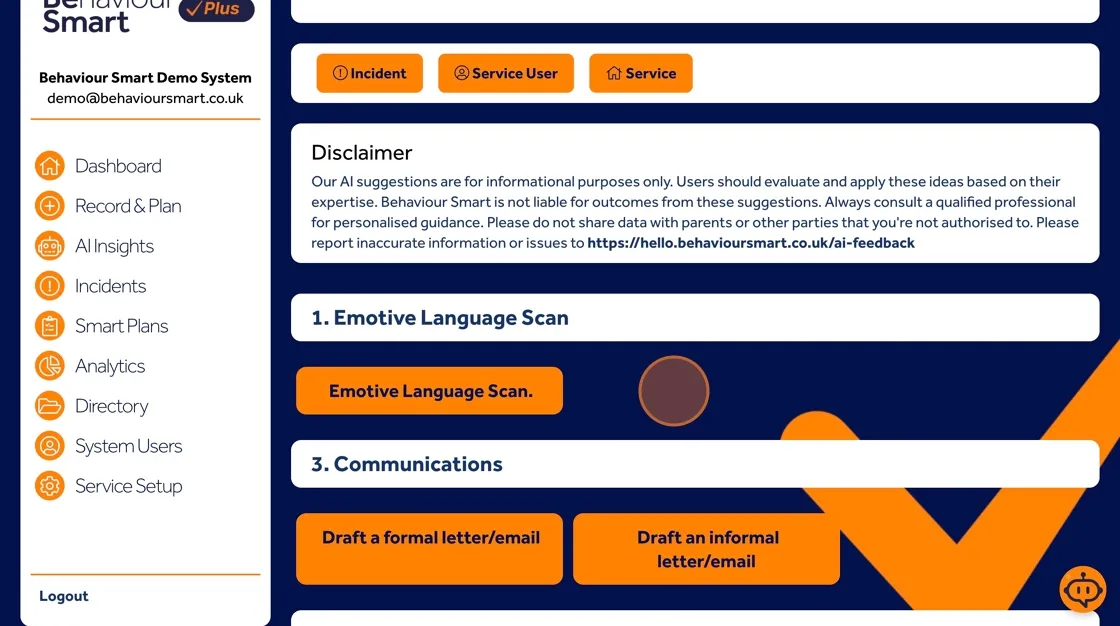
Important: AI suggestions are for information only. They should be checked carefully and applied using professional judgement. Do not share AI-generated content with parents or other parties unless you are authorised to do so and have reviewed it. Always follow your organisation’s safeguarding and data protection policies.
If something looks inaccurate or raises concerns, you should report it using the Behaviour Smart AI feedback link provided in the app.
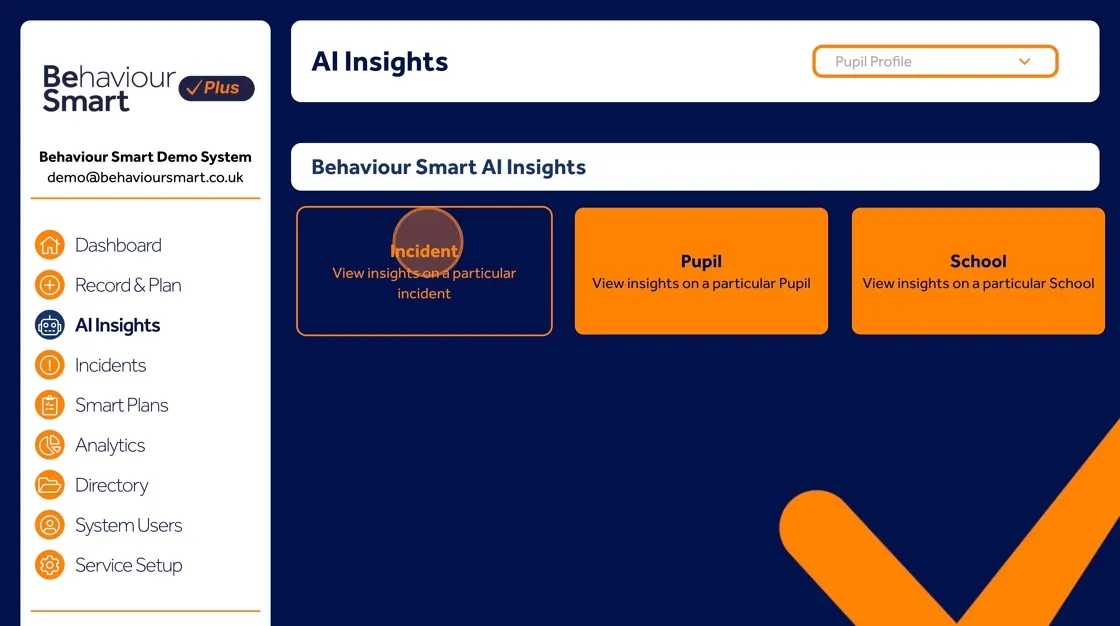
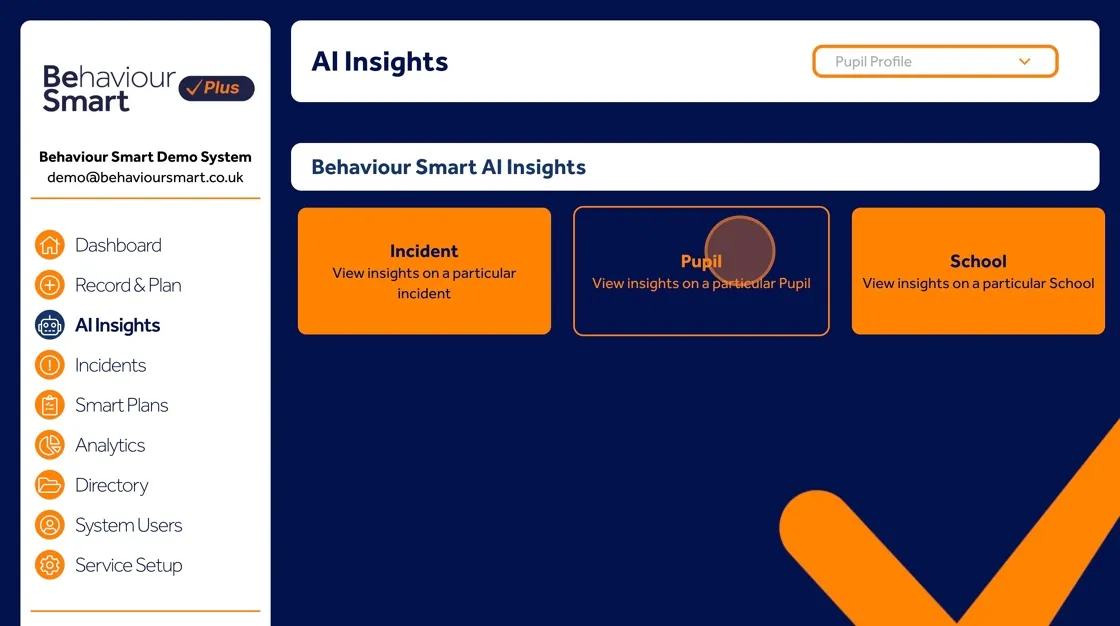
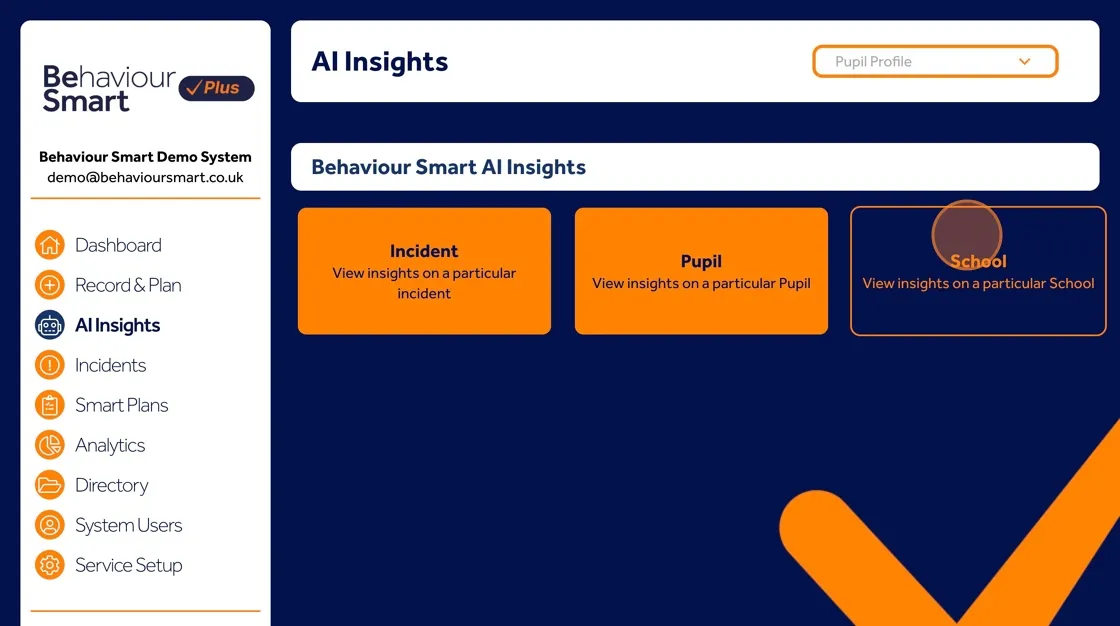
You can use AI Support for a 'Single Incident', 'One Individual', and 'Your whole service'.
Single Incident
An individual
Your whole service
Viewing, Editing and Managing Incidents
How incidents are edited and who can delete them should follow your organisation’s behaviour policy and Behaviour Smart’s data protection policy. To review a recorded incident:
Select Incidents.
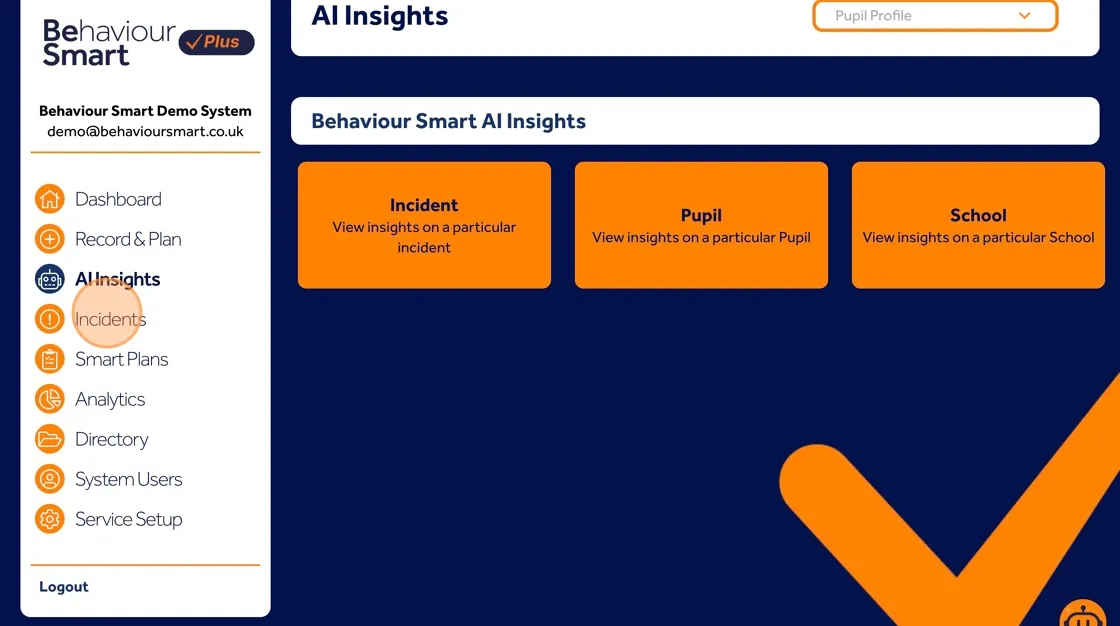
Choose the relevant incident ID (for example: besmart-10281)
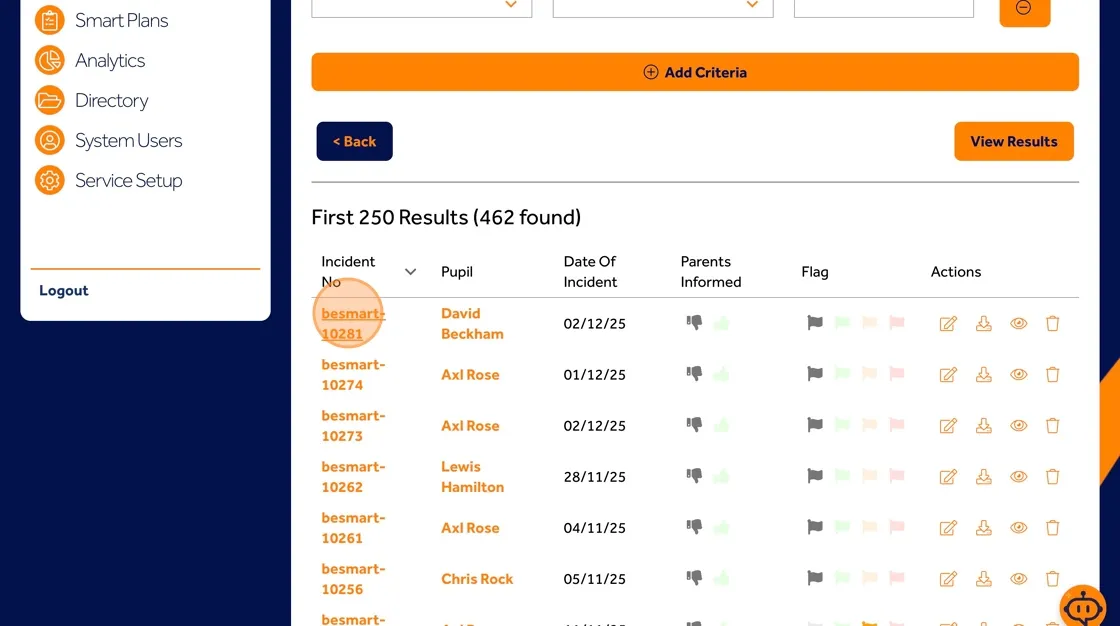
From here, depending on your permissions, you can 'Confirm whether parents have been informed (thumbs up)', 'Flag Incidents', or 'Edit, Download, 'View or Delete Incidents (where your role allows this)'
Give a thumbs up if parents have been informed.
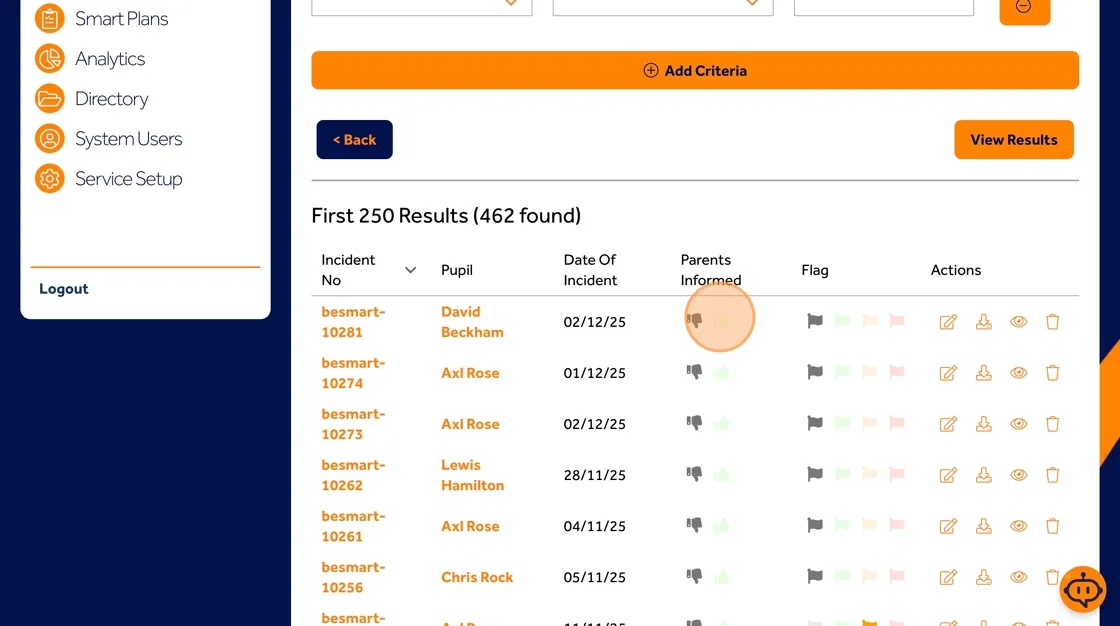
Flag Incidents for further attention
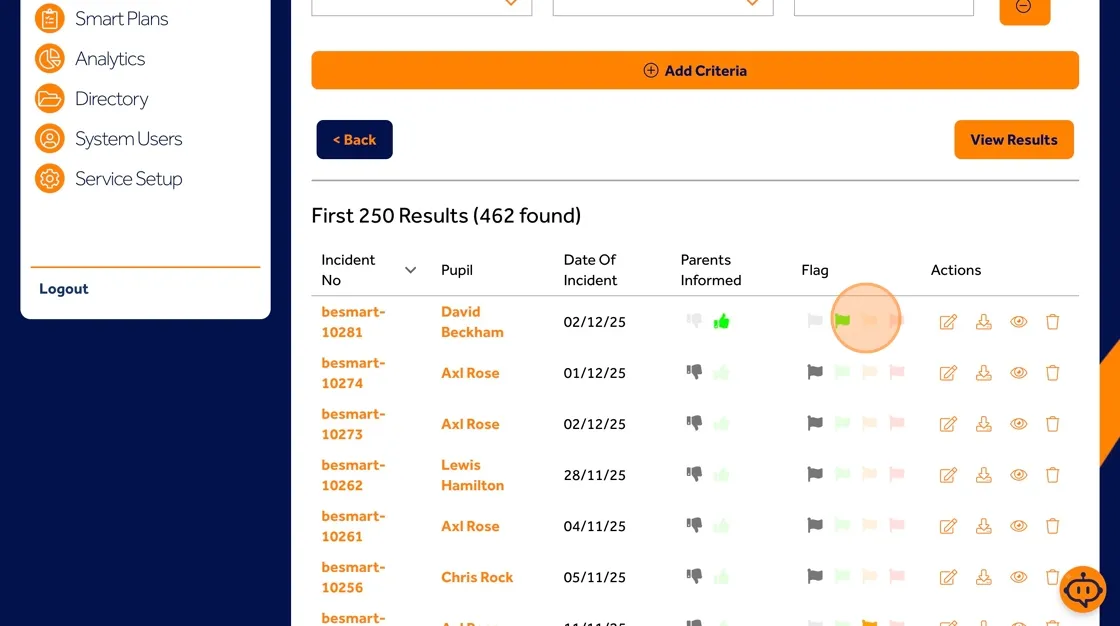
Edit, Download, 'View or Delete Incidents (Permissions Required)

This helps you keep records accurate, up to date and aligned with your internal policies.
Working with Smart Plans
Smart Plans help you turn post-incident learning into practical, proactive support. Learn more about our behaviour support services that sit alongside the software.
To manage Smart Plans:
Go to the Smart Plans section.
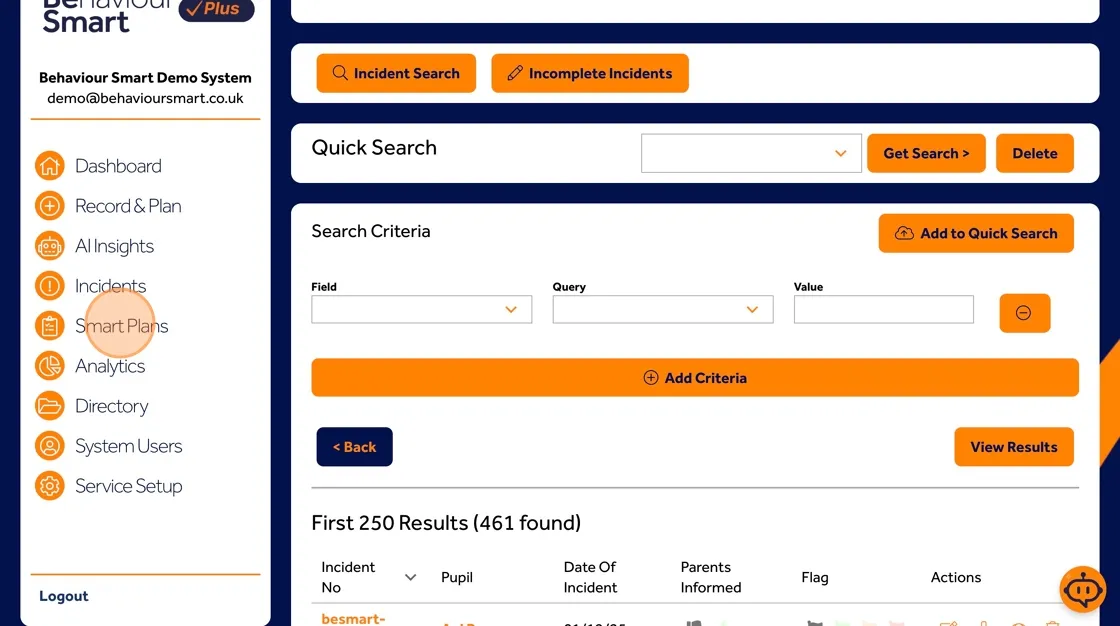
You can View, Download or Delete Plans, depending on your permissions.

Use Smart Plans to record, strategies that help the individual feel safe and regulated, reasonable adjustments and agreed responses and how staff should communicate and follow up after incidents.
Using Analytics to Understand Behaviour Patterns
If you have permission to access Analytics, you can:
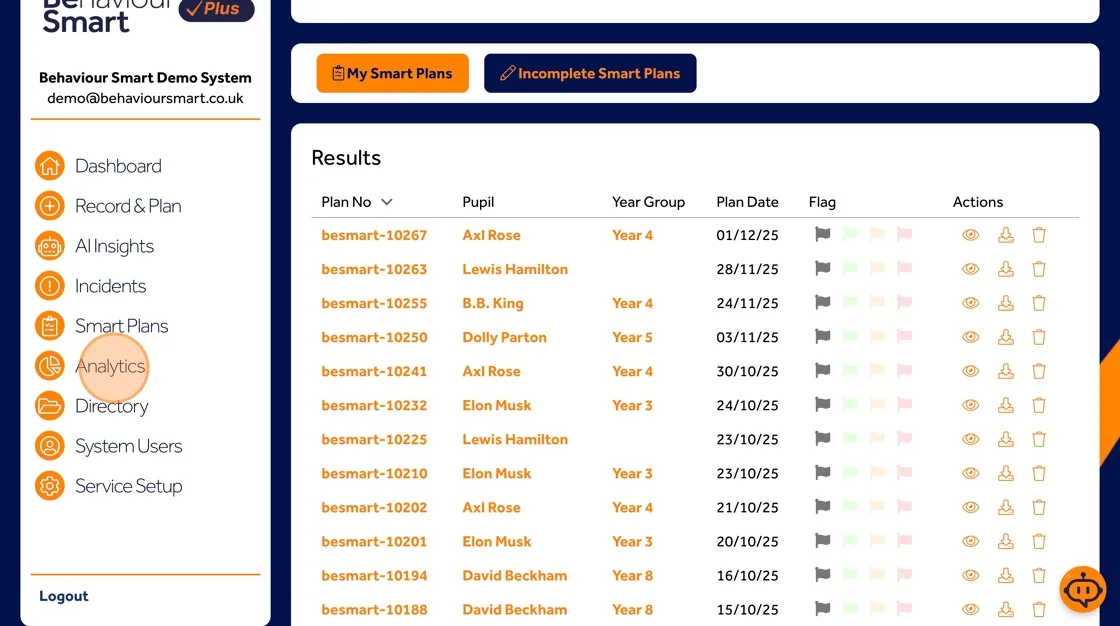
Select Analytics from the menu
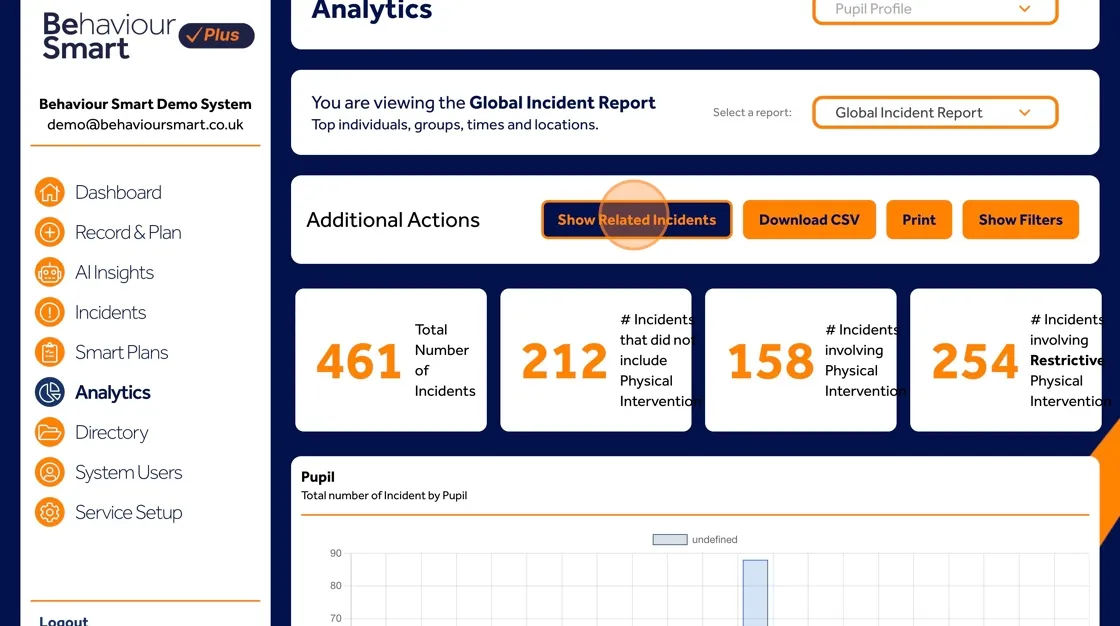
Click Show Related Incidents to see linked events
Download CSV files for further analysis. If you are integrating Behaviour Smart data with your MIS, see our MIS integration guidance.

Print reports

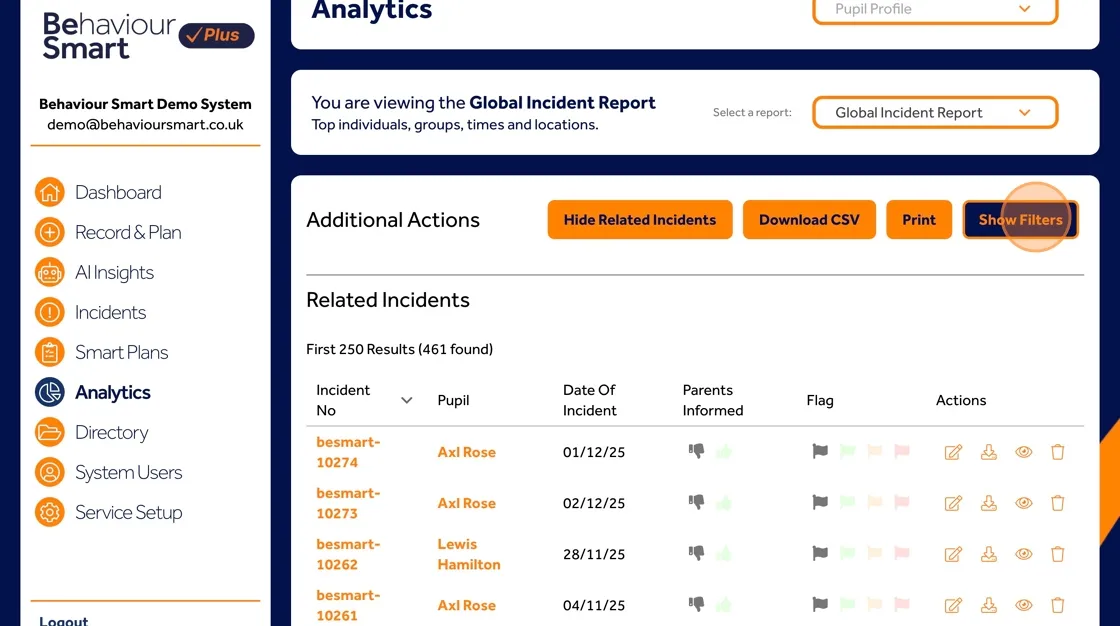
Show or Create filters. Apply filters to focus on particular individuals, behaviours, locations or time periods
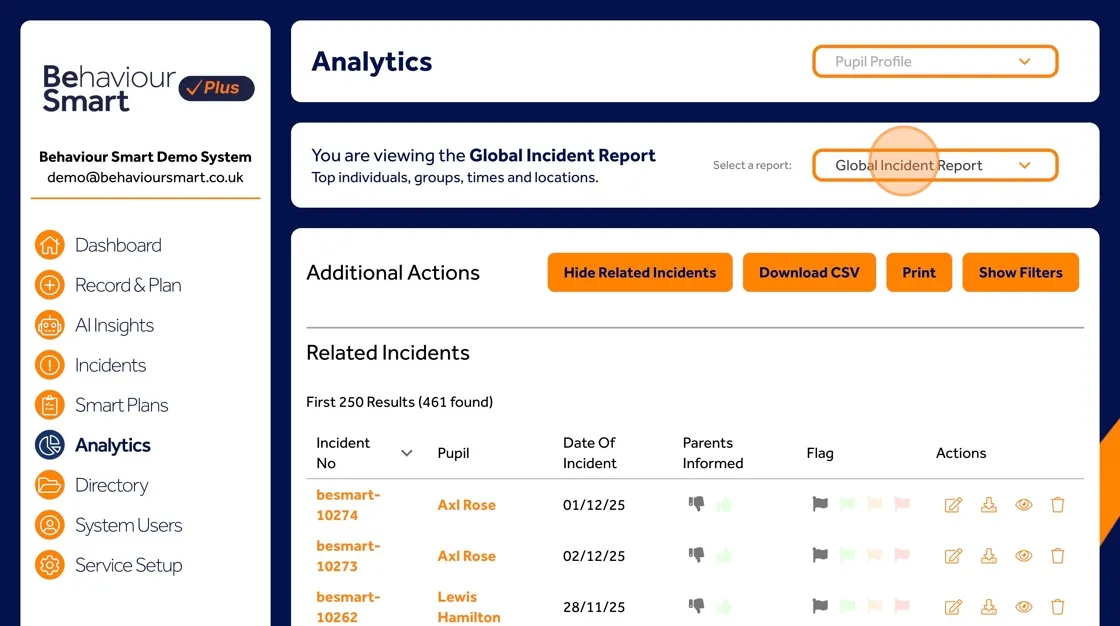
You can also switch between report types using the dropdown, including:
Global Incident Report
Intervention Report
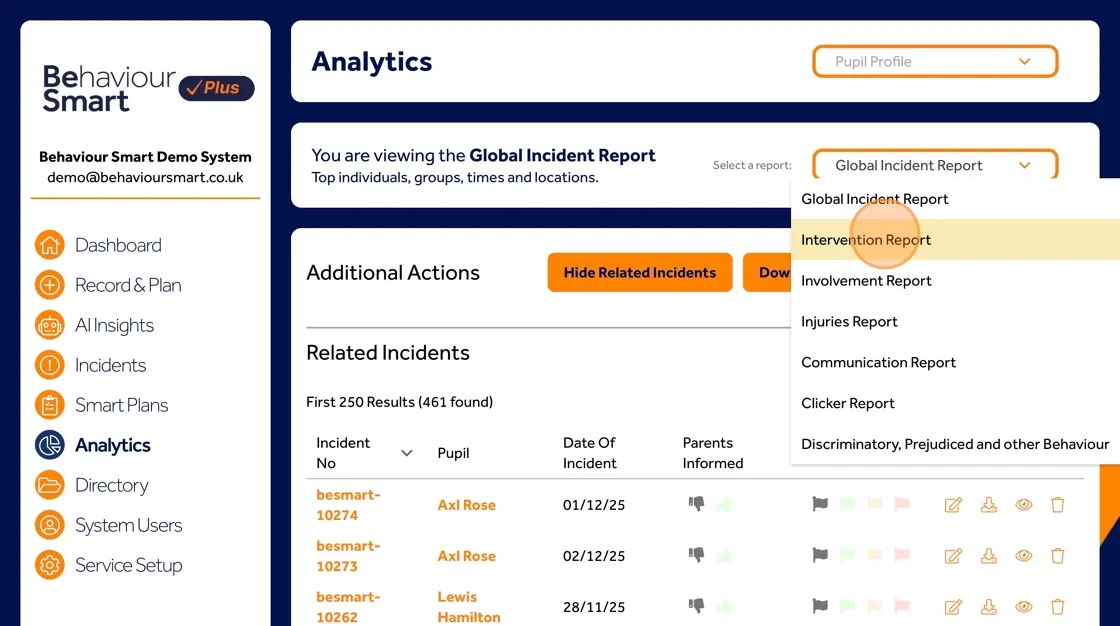
Involvement Report
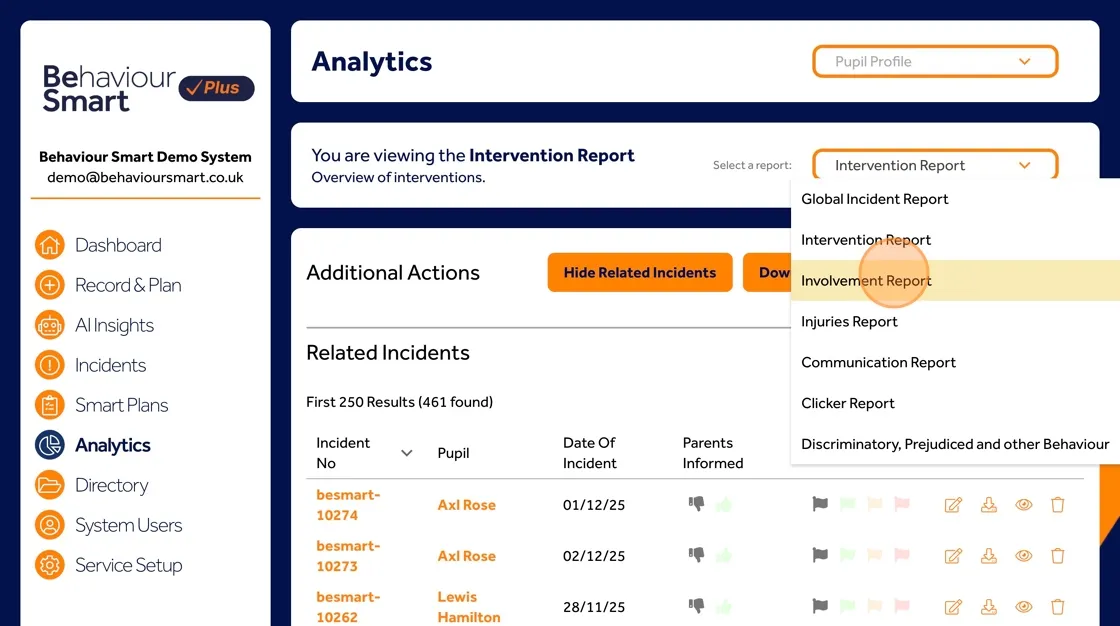
Injuries Report
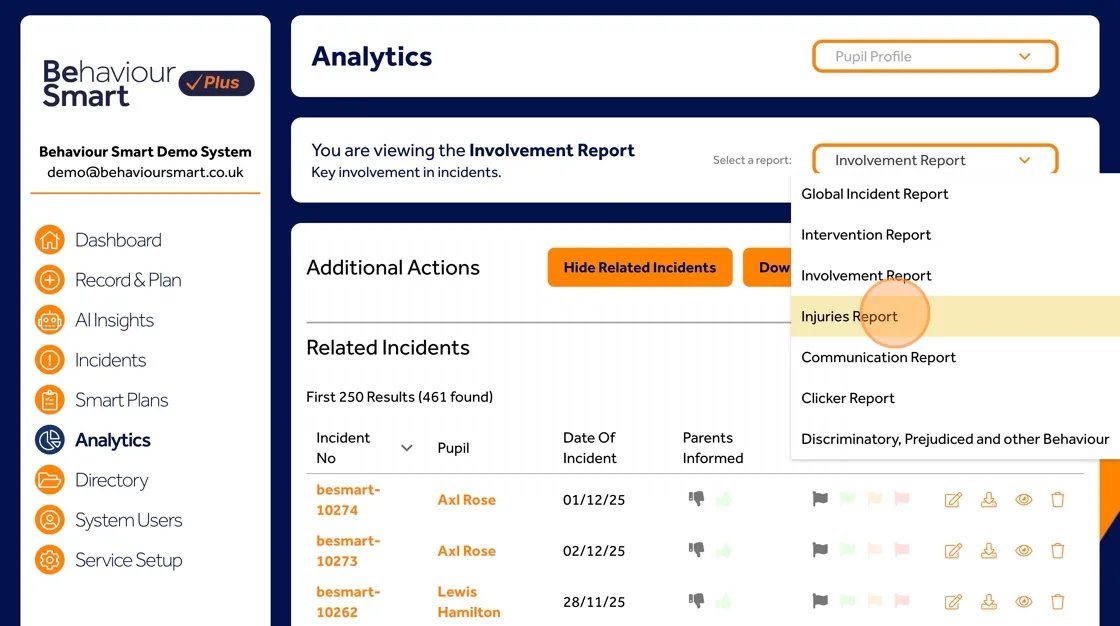
Communication Report
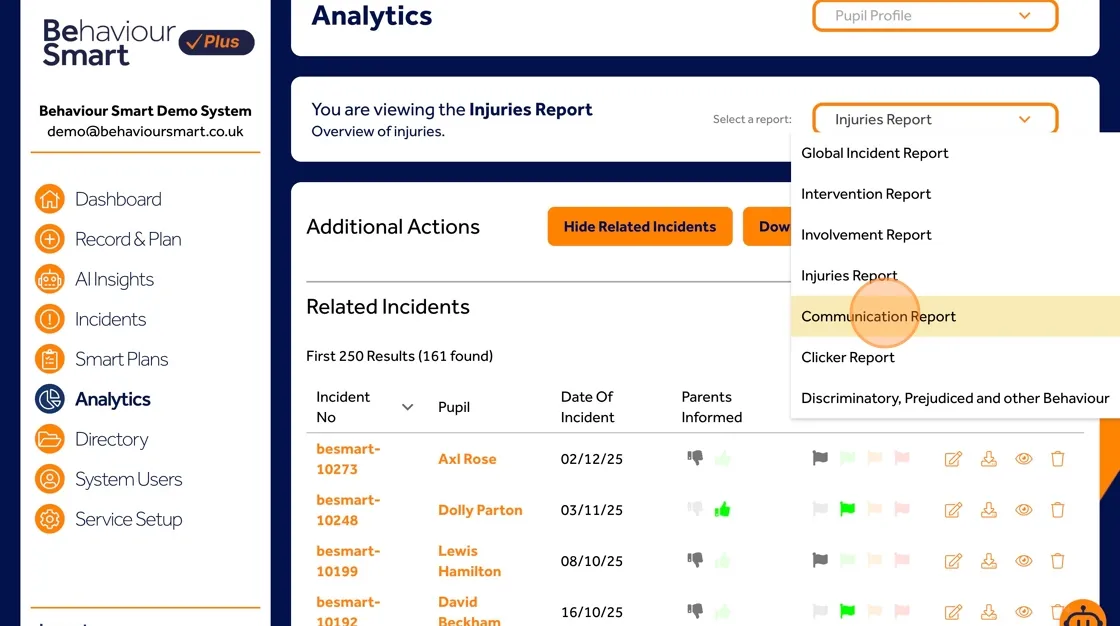
Clicker Report
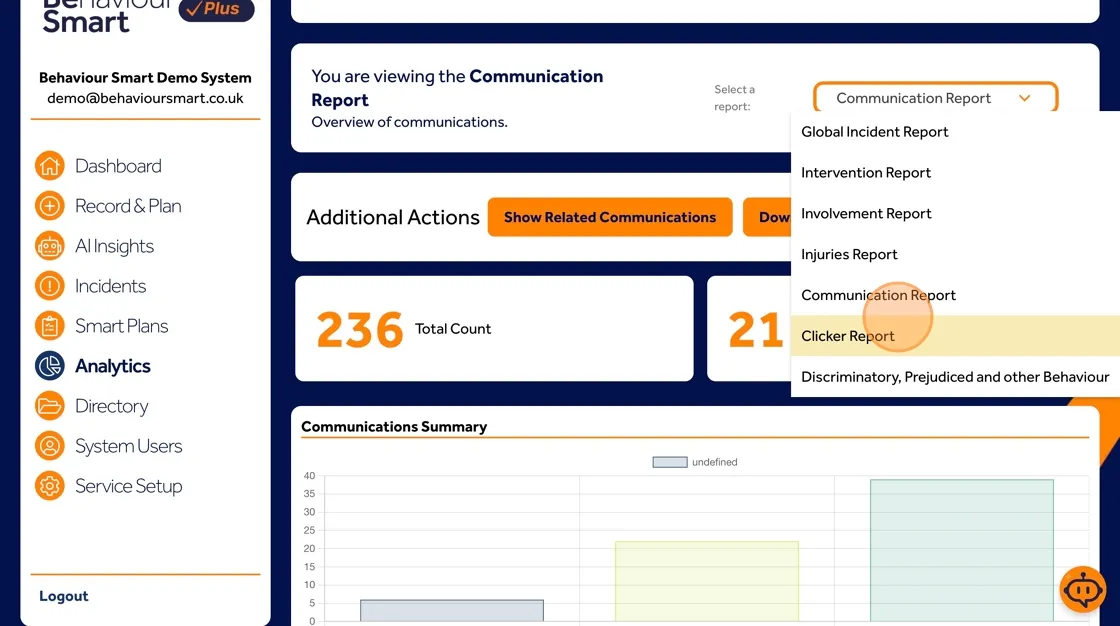
Discriminatory, prejudiced and other behaviour reports
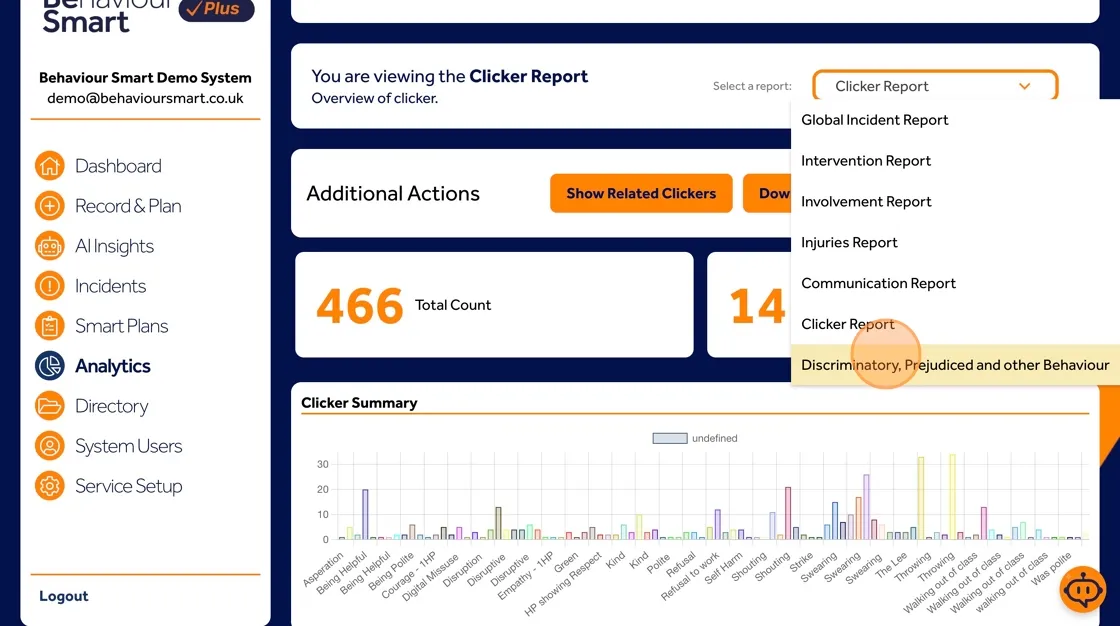
These analytics can be used to inform support plans, staff training and leadership decision-making.
Recording Incidents Involving Physical Intervention
If an incident involves physical intervention:
Individuals information can be found in the "Directory"

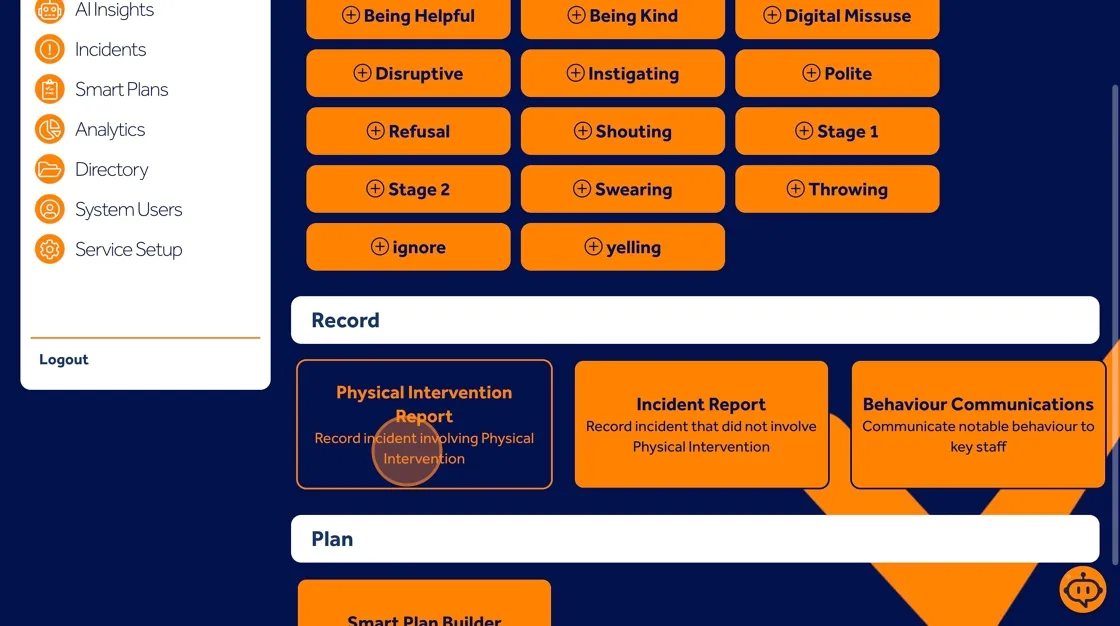
To record an incident involving Physical Intervention:
Select Record incident involving Physical Intervention.
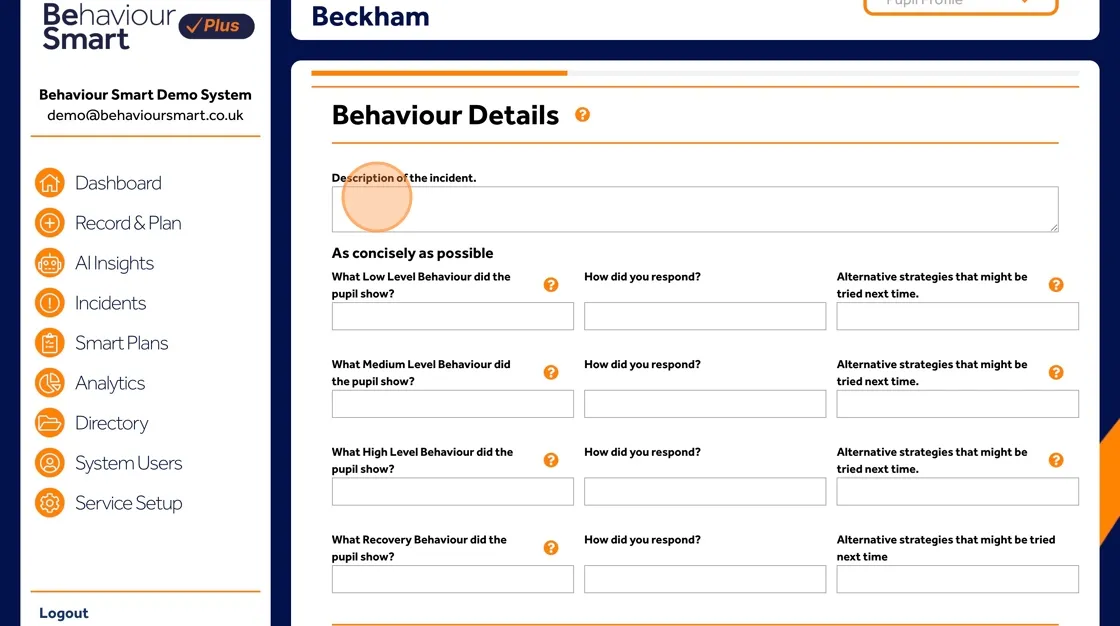
Complete the form with the incident details

Enter the details for the incident.
The low, medium and high-level behaviours displayed
How staff responded
Alternative responses to try next time
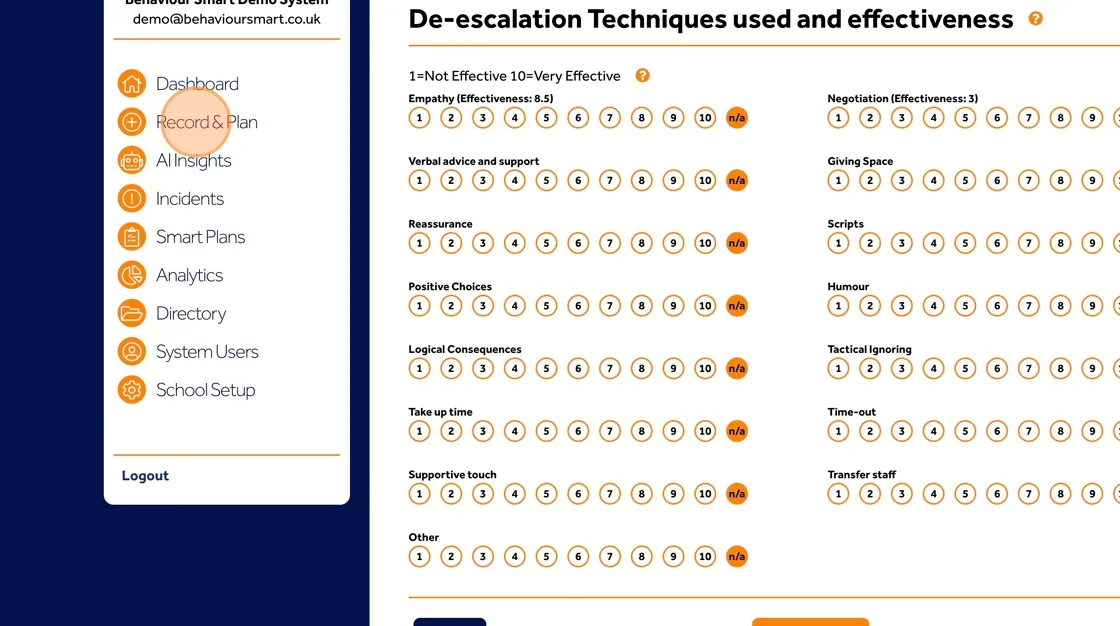
Enter the effectiveness of any De-escalation Techniques used.
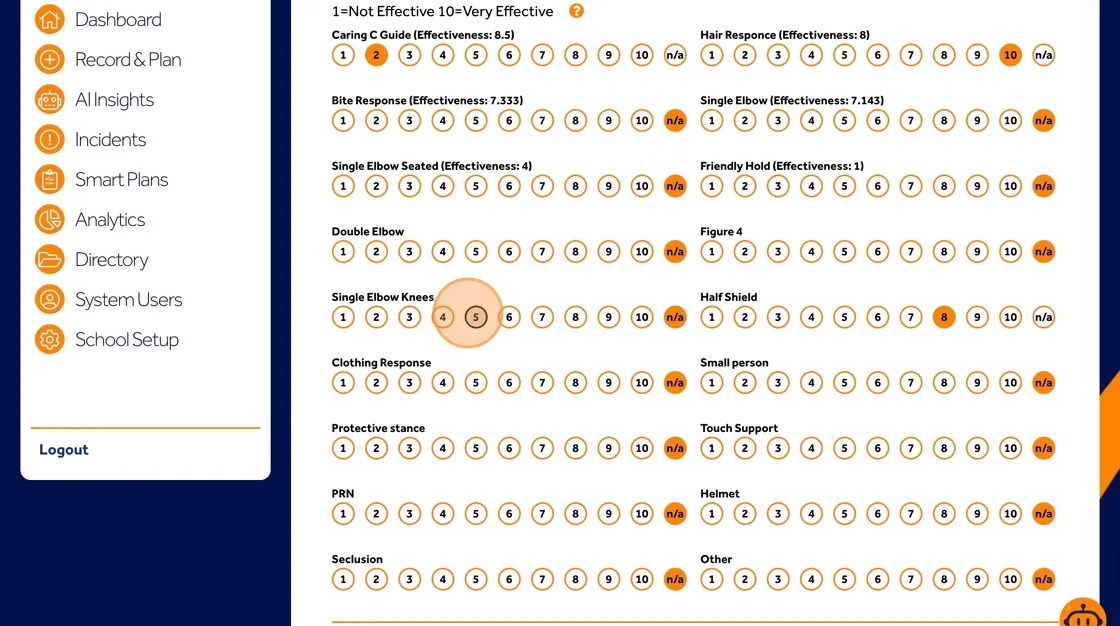
And the effectiveness of any Physical Techniques used.
Click "Next Page"

Complete the Post Incident Learning Section
Continue to the "Next Page"

This section is about accurate recording and reflection, not about instructing staff to use physical intervention. All practice must follow your organisation’s policies, training and legal duties.
Submitting the Report and Next Steps
After completing the incident and post-incident learning sections, you can choose to:
Submit Report
Open the Smart Plan Builder to create or update a support plan
Access AI Support
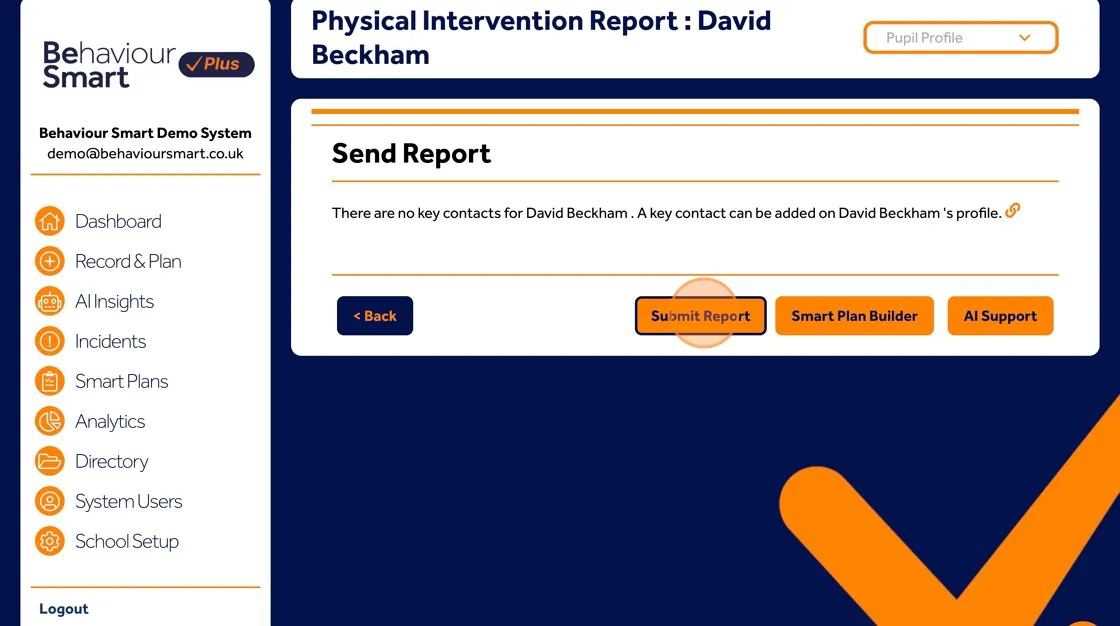
When you submit the report, key people in your organisation are notified so that the incident can be followed up promptly and safely.
Good practice, safeguarding and data protection
When using Behaviour Smart:
Keep records factual, respectful and child-centred
Avoid blaming language; focus on what happened, how the child felt and what might help
Only include information you are authorised to record
Do not share reports or AI outputs with anyone who does not have permission to see them
Follow your setting’s safeguarding, behaviour and data protection policies at all times
If in doubt, speak with your safeguarding lead or manager before sharing sensitive information.